
Build with an agent
Build with an agent
In short
Telling a coding agent in words what is wrong with a page loses which part you meant, what made it and what the page did. In Wanigan you point at the part, or snap or record it, and the agent gets your words with the page’s address, the parts, the files behind them and the pictures.
On this page
Why point instead of describe
Say the price on a product page sits too close to the badge under it. Typed into a chat, that sentence leaves the agent to guess which page, which price, at what width, and which template draws it. It may fix the wrong one.
A note in a chat loses which part of the page you meant. A note on a part keeps it. From the live view, Wanigan writes what only it can see; you write what is wrong, and what right looks like. The agent gets:
- The page’s address and the view’s width.
- The parts you pointed at, named as the site names them, with the template, component or block behind each.
- With the site helper, the module, plugin or theme behind each, and the template’s line.
- A snap’s console errors, or a recording’s clicks, pages and failed requests.
- The pictures. Never a video.
The loop
Building with an agent
- You point and say what’s wrong: a note on a part, a snap, a recording, or a problem from the Problems tab.
- The agent gets one message: your words, the page’s address and width, the parts and what made them, the console’s errors, and the pictures. Never the video.
- It works in a real terminal. With an agent running, the message is queued and arrives when the agent is next idle. With none, one press starts one, as New session would. Nothing starts by itself.
- The live view follows its edits: the page reloads, or swaps only its stylesheets, and outlines the parts each file made. The session says “file changed · See it”.
- You review in Changes: the diff, file by file. Notes on lines go back to the agent as one message, and only you approve.
- You point and say what is wrong: a note on a part, a snap or a recording, or what the page reports.
- The agent gets one message: your words, the page, the parts and what made them, the errors and the pictures.
- It works in a real terminal: a Claude Code or Codex session in the project, as if you had typed it there.
- The live view follows its edits: the page reloads, or swaps only its stylesheets, and outlines what each edited file made.
- You review in Changes, and a note on a line goes back the same way.
Send your first note
Open the Live tab
Every project has a Live tab. Switch the view on there, or in Settings › Live view, and it opens the local site you already run, such as
https://northstar-demo.ddev.site.The Live tab of the Northstar Storefront demo project showing https://northstar-demo.ddev.site/shop/lakeside-enamel-mug, with the toolbar’s Select, Snap and Record tools above the page. Current beta · demo 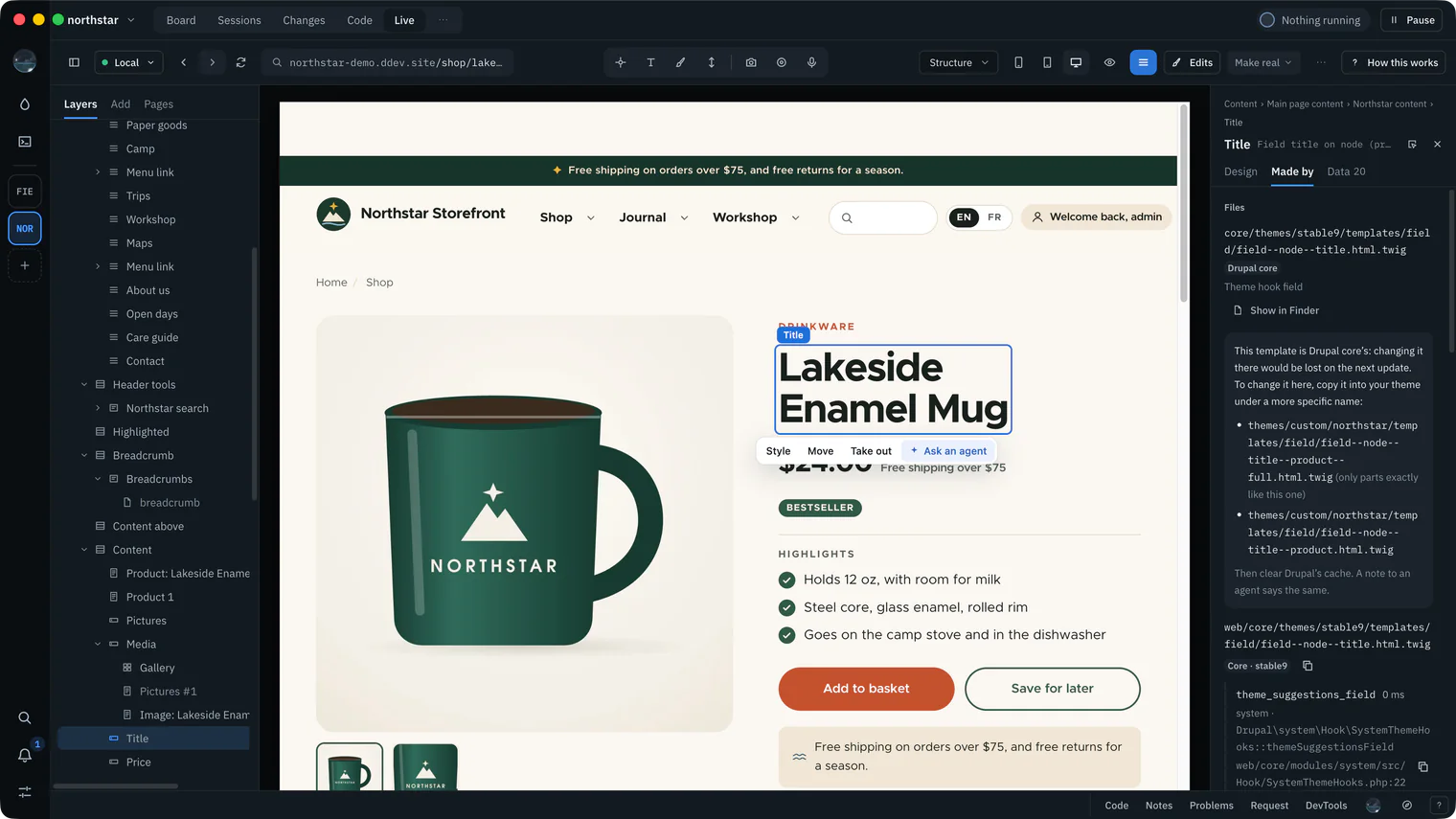
Choose the part
Press P and point at it, or choose it in Layers. It is outlined with its name, and its action bar floats above it: Style, Move, Take out, Ask an agent.
The Northstar product page with its price chosen: outlined in blue with its name chip, and the action bar above it reading Style, Move, Take out, Ask an agent. Picture to come Picture: to come
A screenshot of the real app, with the demo’s data, of what the title above says.
Say what should change
Ask an agent puts the keyboard in the Inspector’s Tell an agent box. Write what is wrong and what you want instead, or speak it with the mic beside the box.
The Inspector’s Design tab for the chosen price, at Tell an agent, with “The price and the badge under it are too close.” typed in the box, the mic beside it, and Add to notes and Send now under it. Picture to come Picture: to come
A screenshot of the real app, with the demo’s data, of what the title above says.
Send it
Send now (On a Mac, ⌘⇧↩; on Windows and Linux, Ctrl+Shift+Enter) queues it to the agent running in the project; it arrives when the agent is next idle. Add to notes (On a Mac, ⌘↩; on Windows and Linux, Ctrl+Enter) keeps it to send later with others.
Or start an agent with it
With no agent running, the button reads Start Claude Code with this: one press starts the agent New session would start here, with your note as its first message. Nothing starts without that press.
The Tell an agent box in a project with no agent running: the button reads Start Claude Code with this, and its arrow’s menu is open on Start Claude Code with this, Start Codex with this, and Gemini CLI: not from here. Picture to come Picture: to come
A screenshot of the real app, with the demo’s data, of what the title above says.
Watch it work
The page reloads as the agent edits files, outlining what each file made. In the agent’s session, See it opens the site beside its terminal.
A session’s terminal with the Northstar site beside it after an edit: the part the edited template made outlined on the page, and the status line naming the file that changed. Picture to come Picture: to come
A screenshot of the real app, with the demo’s data, of what the title above says.
Review the change
Open Changes (G then C) and read the diff before anything is committed.
The Changes view of Northstar Storefront: the changed files on the left, and their diffs with each file’s Viewed mark. Current beta · demo 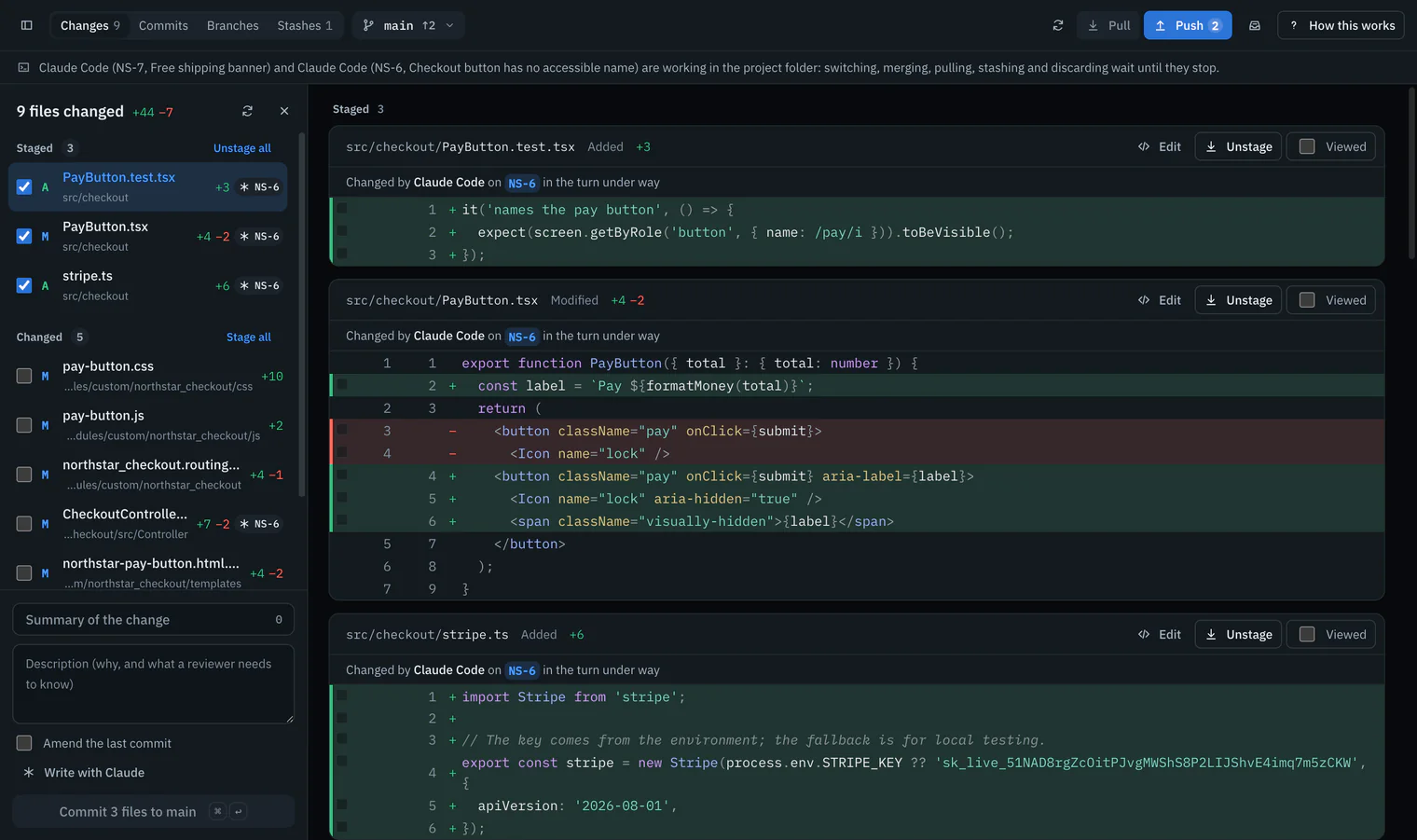


Who gets the note
A note goes to an agent session in the project, never a plain shell.
| Running | The box offers | What happens |
|---|---|---|
| One agent | Send to NS-6 now | Queued to it, for when it is next idle. |
| Several | Send to, then Send now | Queued to the one you choose. |
| None | Start Claude Code with this | Starts one, with the note as its first message. |
| One, but you want another | New agent | Starts Claude Code or Codex beside it, the same way. |
Gemini CLI shows as Gemini CLI: not from here: its first message is typed in its own terminal, where it may ask you to sign in. After that, notes reach it too.
Notes across pages
One problem often shows on several pages. Add to notes keeps each note, with a picture of its part, in the dock’s Notes tab while you go on to other pages.
Send 3 notes there, or On a Mac, ⌘⇧↩; on Windows and Linux, Ctrl+Shift+Enter anywhere in the live view while not typing, sends them as one numbered message, the pictures in the same order. Notes work on a read-only hosted environment too.
Picture: to come
A screenshot of the real app, with the demo’s data, of what the title above says.
Other ways to point
- Snap (On a Mac, ⇧S; on Windows and Linux, Shift+S) and Record (On a Mac, ⇧R; on Windows and Linux, Shift+R): a marked-up picture, or up to two minutes of the page with a log of each step. See Snap and Record.
- Problems, in the dock: Add to notes turns what the page reports into a note that begins “Fix what this page reports”.
- A move the site cannot save: dragging a part whose order a template writes becomes a note, with pictures of the order now and the order wanted.
- A style tried in the design layer: see below.
The Request tab
With the site helper, the dock’s Request tab shows the request behind the page: its hooks in firing order, its queries slowest first, its scripts, styles and logs. It sends nothing itself: pointing at a query outlines the part it was for, to choose and note, and Copy the SQL copies it to paste into your note.
Style edits as a brief
A style tried in the design layer belongs in the theme’s CSS, which is code, so Make it real on a style saves nothing. It says why and opens the note box under the edit, the style already in the note; a token goes the same way. The brief adds these lines:
   An edit in Wanigan’s design layer, shown on the page but not in the site yet: <the edit>, for <what it reaches>.
   Its element: <the element, as the site stores it>.
   Why Wanigan did not make it real itself: <what Make it real said>
   Style in the layer (not saved): <property> <before> → <after>
   Make it in the site’s own styles, the way this theme already styles things (its classes or CSS), not as an inline style.
A picture comes with it while the view shows the edit’s page. The whole message, filled in, is on Prompts.
Once the agent has put the style in the theme, choose Verify on the edit in Edits. Verify finds it in the site and the edit becomes Verified; if the theme does not render it yet, it says “Not in the site yet”, which step failed and at what widths, and the first differences (“At 1440 px, the title: font-size is 52px in the site, 63px in the design.”), so you can tell the agent exactly what is left; the edit stays a draft. When the same element’s words were made real too, one Verify checks both. See Verify.
Watching the agent work
An edit to a file the site serves reloads the page and outlines what that file made; a stylesheet is swapped in place. The status line says what happened:
| The status line says | When |
|---|---|
| “node--product.html.twig changed: outlined the part of this page it makes.” | The file made something on this page. |
| “node--product.html.twig changed in another checkout, which this site is not serving. Nothing reloaded.” | The agent works in a card’s own worktree. |
| “node--product.html.twig changed. Reload to see it (following the agents’ edits is off in Settings).” | Follow the agents’ edits is off in Settings › Live view. |
In the agent’s session, “node--product.html.twig changed · See it” waits until you look. The rules are below.
Reviewing in Changes
The live view shows what a change looks like; Changes (G then C) shows what it is, file by file, and notes on lines go back to the agent as one message. With before and after screenshots on, each card also shows its page before and after each turn that changes files. Approving stays yours: see Review and Changes and git.
Speaking instead of typing
Each note box has a mic, Speak the note. Talk, and each sentence goes in at the caret when you pause, as text you can edit or take back with On a Mac, ⌘Z; on Windows and Linux, Ctrl+Z. On a Mac, ⌘⇧M; on Windows and Linux, Ctrl+Shift+M starts or stops it; hold On a Mac, ⌘⇧H; on Windows and Linux, Ctrl+Shift+H to talk until you let go.
Speech becomes text on this computer: the audio never leaves it, and nothing reaches an agent until you send. The model downloads once, when you ask; see Settings › Voice. During a recording, the toolbar’s Voice tool narrates.
In depth
Behind the send
- Every way of pointing ends in one message of numbered notes: your words, the page when notes span pages, what you pointed at as a short CSS path, and up to four parts around it, innermost first.
- The pictures are saved to the session first, in order (
live-note-1.png,live-snap-1.png,live-recording-1-frame-1.jpg), in Wanigan’s data, never your project. Claude Code is typed its images first; Codex is pasted each as one quoted path. Then the words. - A queued message waits for the agent to be idle. A new Claude Code session waits for its first hook; Codex refuses the composer until its hooks say it is ready.
- A started agent is the one New session would start (the agent of the project’s model on this computer, else the last one started, else Claude Code), with the project’s account. Only Claude Code and Codex start this way.
- If a new agent is not ready for the note within 30 seconds, it keeps running, the note goes back to Notes, and the status line says why.
How the view follows edits
- Each edit is known from the agent’s hook after a tool call: Claude Code and Gemini CLI name the file, and a Codex patch names every file.
- It waits for quiet, so several files reload once: 0.4 s after the last edit, 1.2 s after a Sass or Less file (the project’s watcher compiles it), 2.4 s after a PHP file (PHP’s opcode cache looks again only every couple of seconds).
- When only stylesheets changed, they are fetched again in place, unless the site aggregates its CSS, which takes a reload.
- A part is outlined when its template is the edited file, or its component’s folder holds it.
- An edit outside the folder the site serves, such as in a card’s worktree, is said, not shown: switching which checkout the site serves is not built yet.
Agents see the live view too
Every agent session Wanigan starts is handed its MCP server, wanigan mcp: eight read-only tools for looking at your local site itself, for instance to check a change before saying it is done. MCP, the Model Context Protocol, is how a coding agent is given extra tools.
| Tool | What it answers |
|---|---|
live_status | Whether the view is on, the site, and the page and width you see. |
live_look | A page rendered fresh, its parts named as the site names them, with their files and ids; a picture when asked. |
live_find | Parts matching some words: a name, a template, a field, words on the page. |
live_part | One part as the Inspector shows it: whose code, the override to create, its admin link, its styles. |
live_problems | Error messages, console errors and failed requests from a fresh load. |
live_diff | What changed on the card’s page since the last turn, each area tied to the file that explains it. |
live_site_ai | The AI the site runs as its core reports it, never a key, and the code that runs on save. |
live_library | The components, blocks and patterns the site can place. |
A look renders in a hidden window, so your view never moves, and opens only the project’s own local site, 320 to 2,560 pixels wide. Nothing is written into your project: Claude Code is allowed the eight tools by name in a file in Wanigan’s data, so that a look does not stop to ask. Every call is kept on the card’s Looks tab.
What each CLI was seen doing
Checked on 9 October 2026 against the real wanigan mcp, without a sign-in or a model call, when it had its first six tools; live_site_ai and live_library came later and are seen only in Wanigan’s tests.
| CLI | Seen | Not seen yet |
|---|---|---|
| Claude Code 2.1.293 | Connects and lists the tools; with Wanigan’s flags it loaded them, then stopped at “Not logged in”. | A tool running without asking in a signed-in session. |
| Codex 0.155.1 | Connected, the tools marked read-only. | Whether it asks first, and whether its sandbox lets the server reach Wanigan. |
| Gemini CLI 0.46 | Connects, and the session’s token reaches the server. | A session listing the tools, which needs a sign-in. |