
Get started
Tours and How this works
In short
Wanigan teaches itself inside the window: a short tour points at each part of a view and says what it is for, and How this works draws a view’s rules as a picture with its live numbers. The shortcut sheet lists every key, and the command palette finds anything by name.
On this page
The welcome tour
Help in a manual is help nobody reads at the moment they need it. Wanigan’s tours point at the real thing on your screen and say what it is for and what you can do there.
It starts by itself
On your first launch, once no dialog is open, the welcome tour dims the window and shows its first card, Welcome to Wanigan. It has eight stops and takes about a minute.
The welcome tour’s first card, Welcome to Wanigan, centred over the dimmed demo window, 1 of 8, with End tour, Back and Next. Current beta · demo 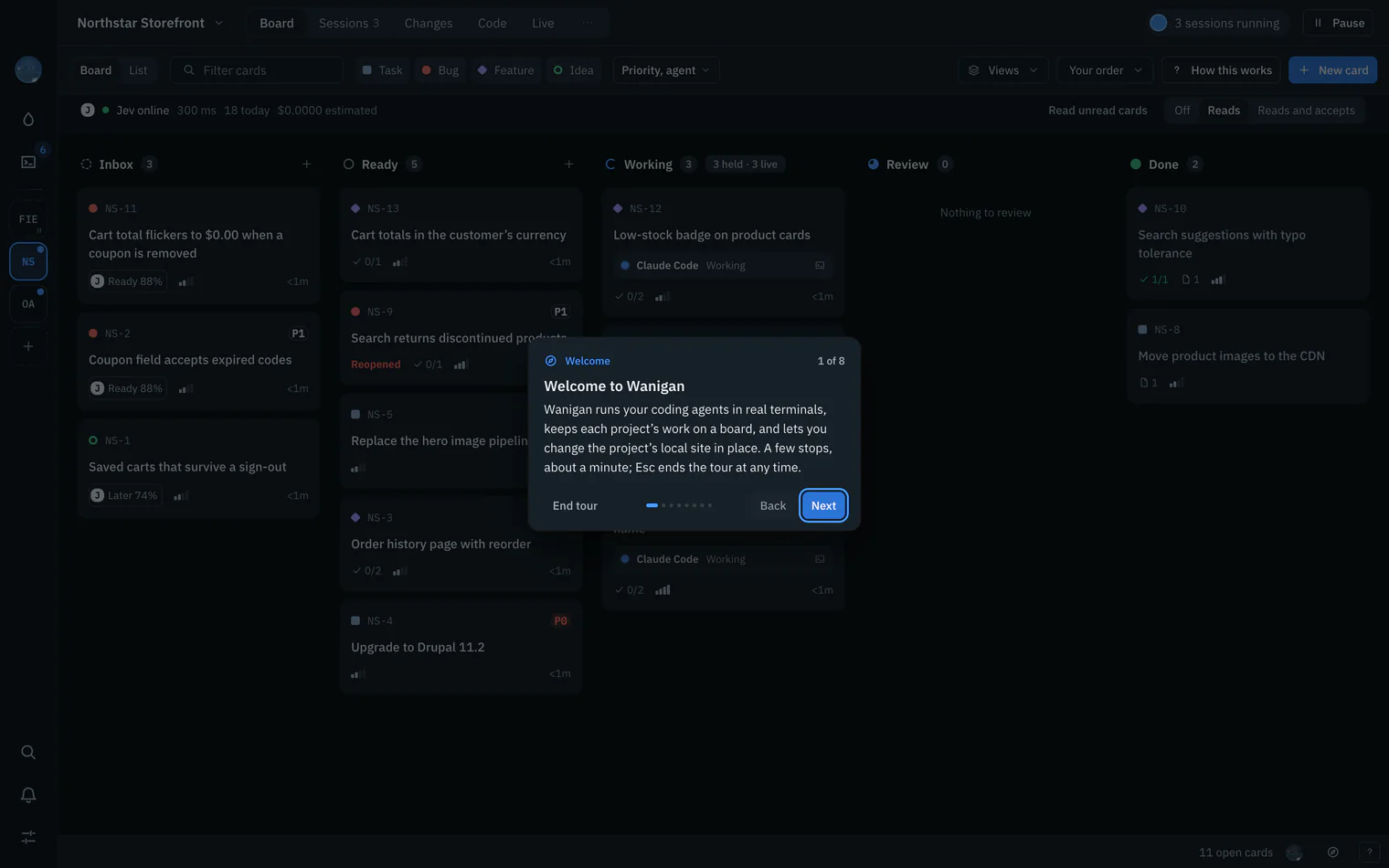
Step through it
Each stop lights one thing (your projects, Needs you, Sessions, the project’s views, Live, search, the tour compass) with a card beside it. Next or → goes on, Back or ← goes back, and the card says where you are, such as “3 of 8”.
The welcome tour’s Needs you stop: the rail’s Needs you lit, the card beside it saying 3 of 8. Current beta · demo 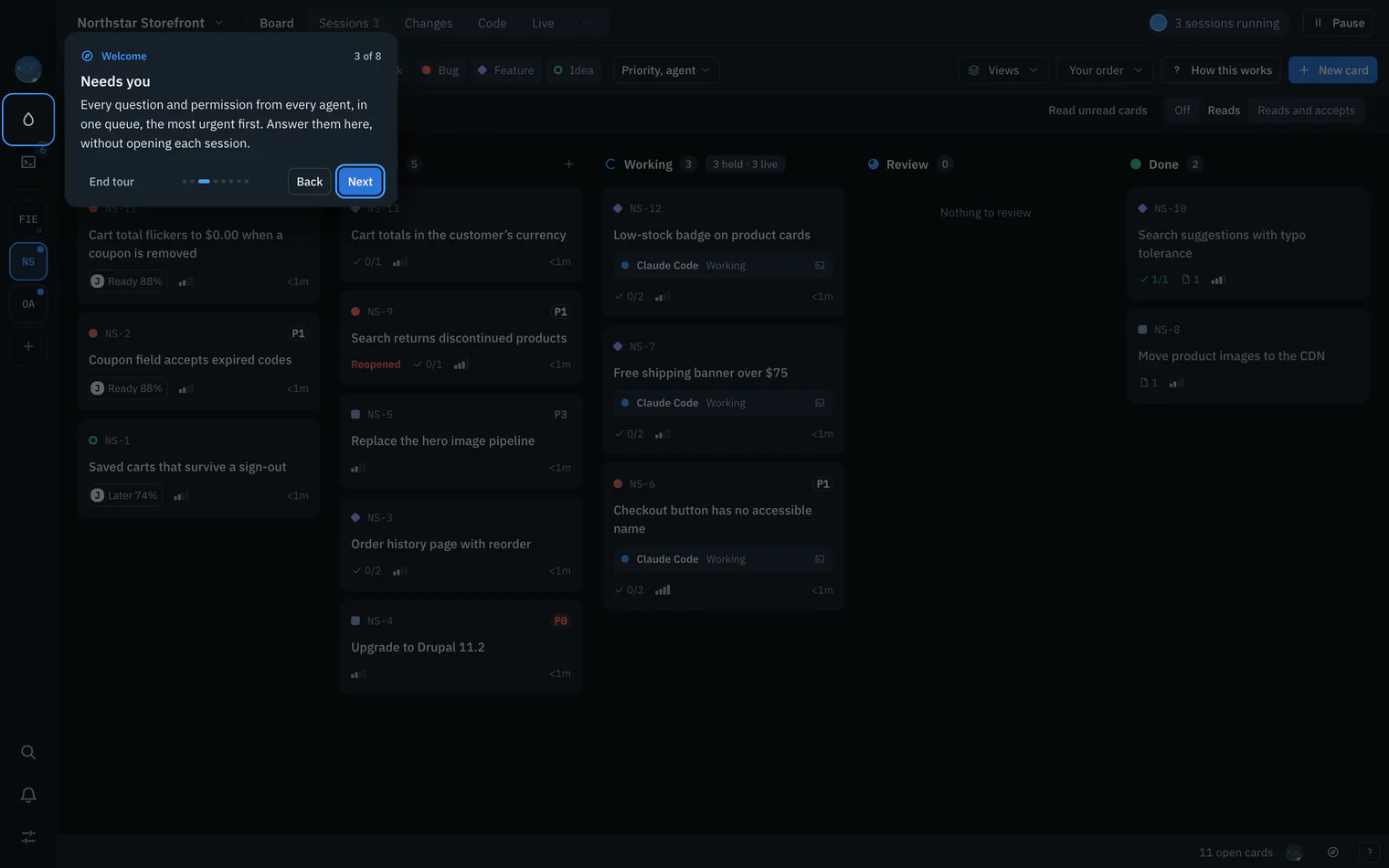
End it whenever you like
End tour or Esc stops at once, and Done on the last stop ends it too. Either way it is not offered again, and you can play it again whenever you like.


A tour for each view
A view with a tour offers it the first time you open the view, in the status line at the bottom: “New to Board?”, a line on what the view is for, Take the tour, and a close button that means not now. The offer waits until the welcome tour has had its turn, so two tours never compete.

After that, the compass at the end of the status line plays the view’s tour again. A view without a tour shows neither, rather than an empty one.
| Tour | Stops | What it covers |
|---|---|---|
| Welcome | 8 | The rail, Needs you, Sessions, a project’s views, Live, search, and the tour compass |
| Needs you | 5 | The queue, each row’s action, Ready to work, Wanigan himself, How this works |
| Running | 5 | Every live session, its action in place, pinning, List or Watch, starting another |
| Sessions | 4 | The project’s sessions, finding one, starting one, History |
| A session | 6 | Its terminal, messages, images and files, turns and details, running out of a limit, stopping |
| History | 4 | Every conversation, search, reading one, resuming |
| Board | 7 | The lanes, a card, moving it, filters, saved views, New card, How this works |
| List | 5 | Every card, sorting, walking the rows, opening a card, back to the board |
| Changes | 7 | Its four parts, the branch, what changed, the diff, committing, pull and push, How this works |
| Code | 5 | The project’s files, opening any file, open files, the text and saving, How this works |
| Decisions | 4 | The rules in force, reading one, finding one, a new decision |
| Activity | 4 | What happened, narrowing it, reading an entry, its card |
| Live | 7 | The live editor, its tools, Structure, the page, the chosen part, Edits and Make real, the dock |
| Settings | 6 | Every section, light or dark, tours, notifications, the live view, updates |
| Accounts | 5 | Every account, signing in, adding one, checking again, How this works |
| Skills | 5 | Every skill, the one chosen, copying or removing, one agent, search |
| MCP servers | 4 | What each agent has, checking connections, one agent, the store |
Start, skip or replay
- Start one: the compass at the end of the status line plays the tour of the view you are in. In the palette (On a Mac, ⌘K; on Windows and Linux, Ctrl+K), type “tour” for Tour of the view, and for Welcome tour.
- Skip one: the close button on an offer puts it away for good; End tour or Esc stops one that is playing.
- Replay or reset: Settings › Appearance › Guided tours has Play the welcome tour, and Offer every tour again, which makes every tour, the welcome tour included, offer itself on your next visit.
- Turn offers off: in the same place, switch off Offer a view’s tour the first time you open it. Nothing then starts by itself, the welcome tour included, and every tour is still a click away.
- From How this works: its footer has Take the tour of the view, where the view has one.
How this works
A list of rules is hard to hold in your head; a picture of what happens, with this project’s numbers in it, is not. How this works draws a view’s rules as lanes of boxes: who does each step, the rule in a sentence or two, and a live count where there is one.
Open it
Click How this works in the view’s toolbar, or press On a Mac, ⌘K; on Windows and Linux, Ctrl+K and type “how” for How this view works.
Northstar Storefront’s board toolbar, with How this works at its right end. Current beta · demo 
Read the lanes
Each numbered lane is one part of the flow, read left to right. Each box is tagged with who does it (You, Agents, Jev, The board, Wanigan, The site, Needs you) and holds its rule. Arrows are the usual path; the notes beside say when you are needed and who does what.
How the board works for Northstar Storefront: four lanes (Filing, Your call, The work, When it goes wrong) with the board’s live numbers, and the side notes. Current beta · demo 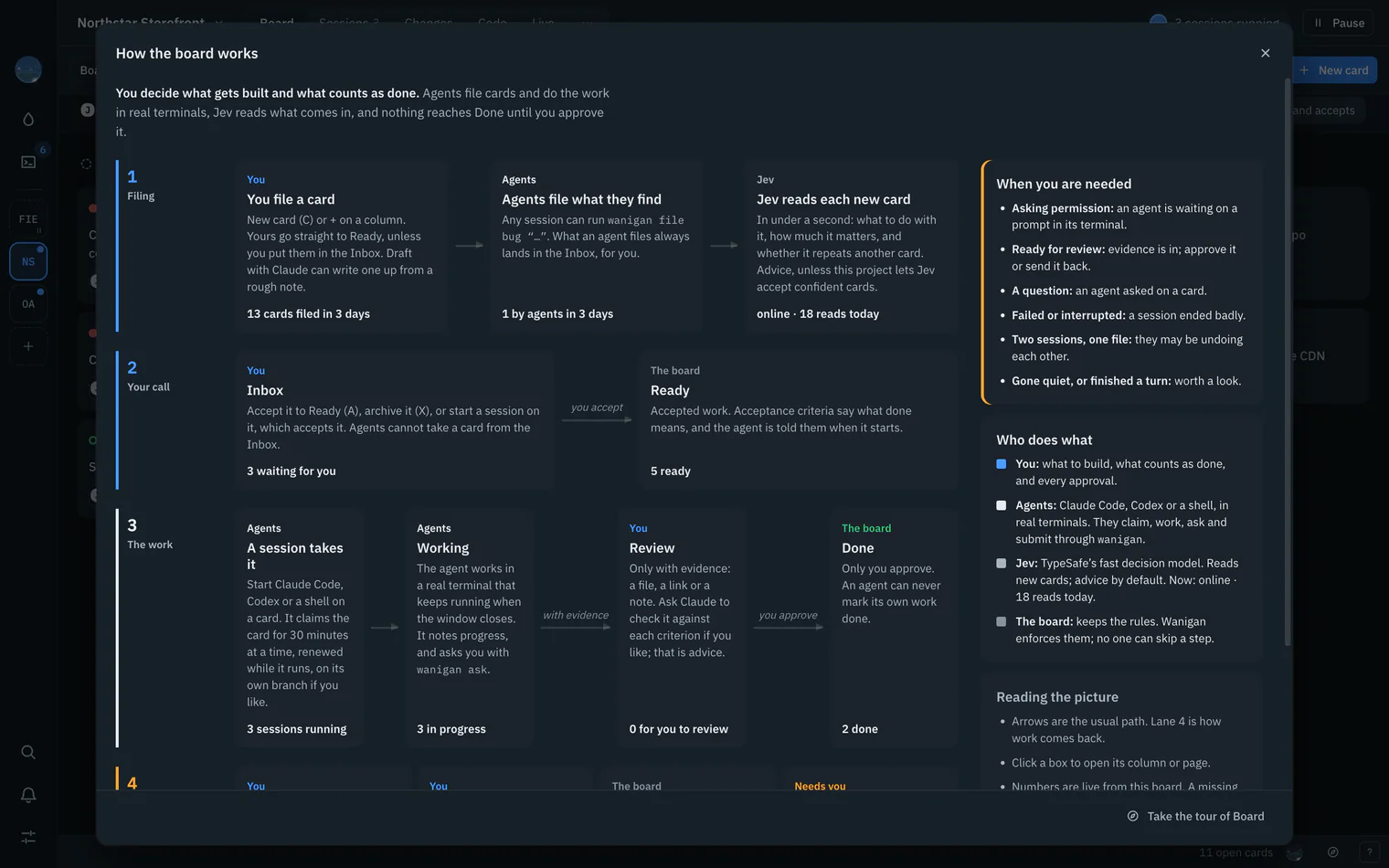
Click a box
On the board, a box opens what it describes: Inbox shows the Inbox column, Jev opens Jev’s settings, Needs you opens Needs you. Esc closes the dialog.


| Where | Its picture |
|---|---|
| Needs you | How Needs you works |
| Sessions, in every project | How Running works |
| A session | How a session works |
| History | How History works |
| Board | How the board works |
| Changes | How Changes works |
| Code | How Code works |
| Live | How the live editor works |
| Settings › Accounts | How accounts work |
| Settings › Skills | How skills work |
| Settings › MCP servers | How MCP servers work |
| Settings › Local models | How local models work |
| Settings › Phone | How the phone works |
The shortcut sheet
? or On a Mac, ⌘/; on Windows and Linux, Ctrl+/ opens Keyboard shortcuts: every key in the app, read from the same table the keys themselves and the menus use, so the sheet cannot drift from what the keys do. The ? button at the end of the status line and Help › Keyboard Shortcuts open it too.

Type to narrow it, by what a key does or by the key itself. Keys show as your platform writes them. On a Mac, ⌘; on Windows and Linux, Ctrl shortcuts work even while a terminal has focus; single keys work when nothing is being typed. Every key is also on Shortcuts.
The command palette
On a Mac, ⌘K; on Windows and Linux, Ctrl+K, or Search and commands in the rail, finds anything by a few letters of its name: every view, your projects and each project’s views, cards, live sessions, Settings’ sections and commands, each with its key. Type three letters or more and it also searches what agents said in their sessions.

↑ and ↓ move through the results, across groups; Enter runs one; Esc closes the palette. Its commands include Open a project…, New session, New card, Git in the open project, Go to a page of the site…, Notifications, the theme, How this view works and the tours.
In depth
How a tour moves
- A stop points at one named part of the window. Before it shows, the tour goes where the stop needs (the project bar’s stops open a project if none is shown), then waits for the part to be drawn: up to 2.5 seconds after going somewhere, 0.4 seconds when it stays put.
- A part that never shows (no project open, a panel closed) is passed over in the direction you were going. The count and the dots count only stops that can be shown now, and on the last of them Next reads Done.
- Back from the first stop stays put; Next past the last ends the tour.
- The card sits on the side of its part the stop prefers, flips to the other side when it would not fit, otherwise takes the side with the most room, and always stays 12 px inside the window. The lit area reaches 6 px past its part and follows it as panels open, the window resizes or the view scrolls.
- A tour is a dialog: focus moves into its card, returns where it was when the tour ends, and the window’s own keys wait meanwhile. → and ← step only with no ⌘, Ctrl or ⌥ held. Like any overlay, a tour steps the live page aside so it can point at what is drawn where the page is.
- Which tours you have seen or put away is kept in this window’s storage on this computer (
wanigan.tours), a convenience like the panels’ sizes. Anything unreadable there counts as nothing seen, so the worst that can happen is a tour offered again.
What a How picture promises
Every sentence in a How picture is a rule the code enforces, written beside the code that enforces it, so when a rule changes the picture changes with it. The board’s picture, for example, has four lanes:
- Filing. You file a card (C, or + on a column; yours go to Ready unless you put them in the Inbox). Agents file what they find with
wanigan file, always into the Inbox. Jev reads each new card, as advice unless the project lets it accept confident cards. Counted: cards filed in three days, and how many by agents. - Your call. The Inbox: accept a card to Ready (A), archive it (X), or start a session on it, which accepts it. Agents cannot take a card from the Inbox. Ready holds accepted work and its acceptance criteria.
- The work. A session claims a card for 30 minutes at a time, renewed while it runs; the agent works in a real terminal; Review takes only evidence (a file, a link or a note); Done is yours alone to approve.
- When it goes wrong. Send back, reopen, a session that stops (its claim released, the card back in Ready, its notes kept), and Needs you.
Lanes, boxes and notes are drawn the same way on every view, and the dialog offers the view’s tour in its footer where there is one. Agents and the board explains the board itself.
How the palette ranks
- Letters match in order, not necessarily side by side. A match at the start of a word or in a run scores higher, the whole query as typed beats the same letters scattered, and of two equal matches the shorter text comes first.
- Groups always come in the same order: Go to, Projects, Cards, Sessions, Commands, Said in sessions. A group with nothing in it is left out.
- Before you type, Cards and Sessions show their first five; once you type, each group shows its best eight.
- Some entries appear only once you type, so the empty palette stays short: each view of every project (“Northstar Storefront: Changes”), Settings’ own sections, Git commands, Page DevTools, How this view works and the tours.
- Said in sessions asks the core to search what agents said in their recorded output once three characters are typed and typing pauses; its matches keep the core’s order.
- Tab stays in the search field, and the arrows wrap from the last result to the first.