
Get started
Follow the Rust rebuild
In short
Wanigan Rust Edition is being built and checked. There is no Rust Edition download yet. The Build Board shows what is planned, in progress, and ready for review.
On this page
Where it stands
The Rust rebuild is in development. Its editor and desktop work are being tracked openly, with status tied to real project work. A release will be announced only after it has been built and verified.
Explore the work
The rest of these docs describe the earlier Wanigan desktop app and its workflows. They are a guide to the product direction, not a promise that every feature is already complete in the Rust rebuild.
Installation status
The Rust Edition download is closed while the rebuild is in development. Follow the public Build Board for its release status.
The first launch
With no project open yet, Wanigan opens Open a project by itself; close it if you would rather look around first. Then the welcome tour starts: eight short stops, about a minute, and Esc ends it (Tours and How this works).
macOS counts what agents read as Wanigan’s. For a project in Documents, Desktop or Downloads it may ask whether Wanigan 2 may use that folder, giving the reason “Wanigan runs coding agents in the projects you open.” Allow it, so the agents can read the project.
The window’s parts
Studio, the design this release ships, gives every job one place, so you always know where to look.

| Part | Where | What it holds |
|---|---|---|
| The rail | The left edge, always 60 px | Wanigan’s mark, Needs you (amber count), Sessions (running count), your projects as tiles and a dashed tile to open another; then Search and commands, Notifications and Settings |
| The project bar | Across the top of a project | The project’s name (a menu); its views (Board, Sessions, Changes, Code, Live, and History, Decisions and Activity under ···); what is running; Pause |
| The toolbar | Under the project bar | The current view’s tools, such as the board’s filters or the live editor’s Select, Type, Style and Move |
| The left panel | Left of the work | Structure: Layers, Add and Pages in the live editor; the file list in Changes and Code |
| The inspector | Right of the work | What you chose: a part of the page, or an open card |
| The dock | Beneath the work, closed by default | Notes, Problems, Request, DevTools and Code; the code editor (On a Mac, ⌘J; on Windows and Linux, Ctrl+J) in any project |
| The status line | The bottom of every view | The latest outcome, the tour compass, the keys (?) and Talk to Wanigan |
| The notification tray | The bell in the rail | Every outcome with its time, and news about updates |
| The command palette | On a Mac, ⌘K; on Windows and Linux, Ctrl+K | Every view, project, card, session and command, with its key |
Each colour means one thing: amber, something needs you; blue, what is selected or at work; red, failed or refused; green, saved or verified.
Try the demo first
The demo is the safest way to learn the app: a second Wanigan with sample projects and stand-in agents, in its own data folder. Nothing real is touched and no model is called.
Open it
Choose Help › Open the Demo. Until you have opened a project, Needs you offers Open the demo too.
Look around
A second window opens with a Demo banner across the top: three sample projects, Northstar Storefront and Fieldnotes among them, with cards in every column, stand-in agents at work, accounts and a stand-in Jev. Click anything.
The demo’s window: the Demo banner across the top with Leave the demo at its end, and the rail’s three sample project tiles. Current beta · demo 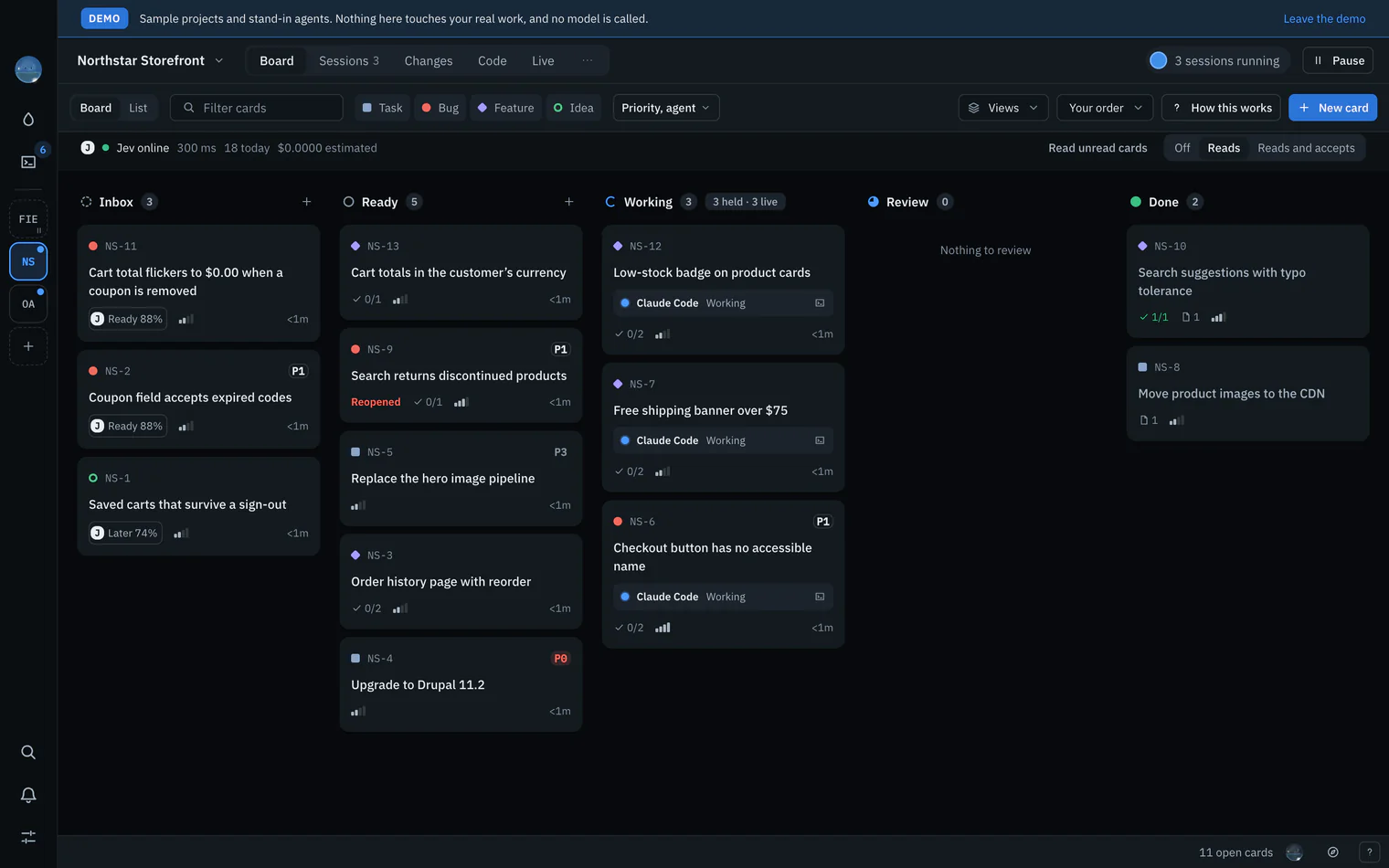
Leave it
Choose Help › Leave the Demo, or Leave the demo on the banner. Your own Wanigan was never closed.

Open a real project
A project is a folder you work in, usually a repository. It gets a short key (NS) and its own board, sessions, changes, decisions and history. Wanigan writes nothing into it.
Open the dialog
Click the dashed tile at the end of your projects in the rail (its name is Open a project), or press On a Mac, ⌘K; on Windows and Linux, Ctrl+K and choose Open a project…. A project’s name menu has it too.
The rail’s dashed tile under the demo’s project tiles, its tooltip saying Open a project. Current beta · demo 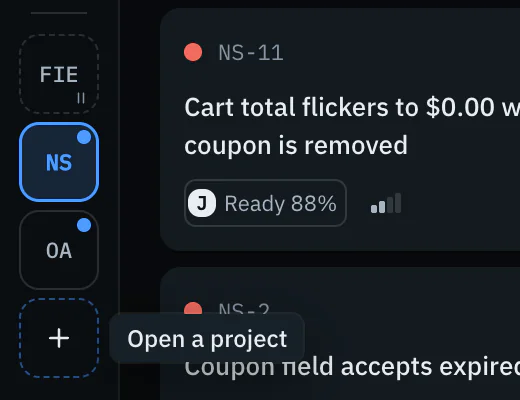
Choose the folder
Choose… picks the folder, or paste its path; Name is optional. Or, under Folders your agents have worked in (from the last 30 days of your Claude Code and Codex conversations), click Open beside one.
The Open a project dialog: Path with Choose…, Name, and Folders your agents have worked in, empty in the demo. Current beta · demo 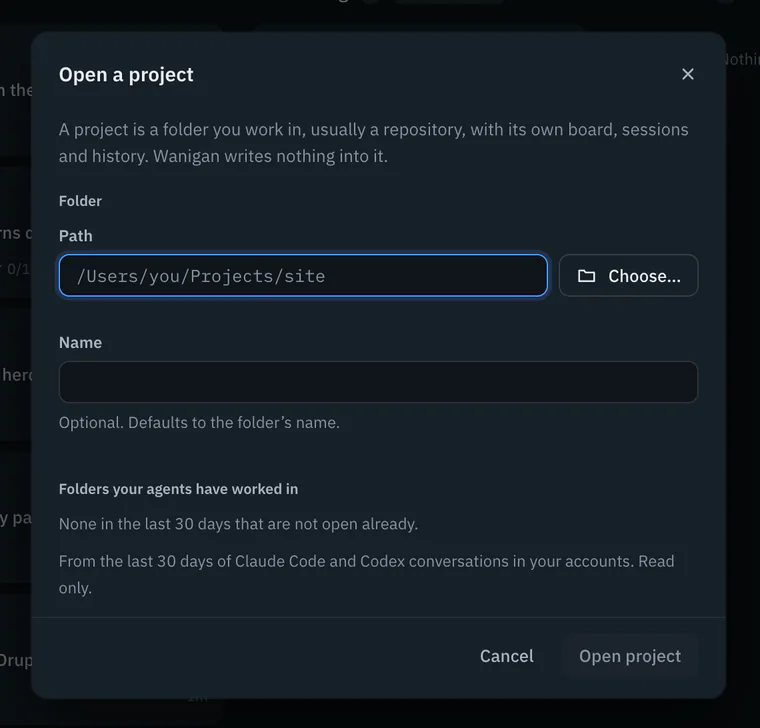
Open project
Wanigan says “Northstar Storefront is open. Its key is NS.” and shows the project’s board. On a Mac, ⌘1; on Windows and Linux, Ctrl+1 to On a Mac, ⌘9; on Windows and Linux, Ctrl+9 jump to your first nine projects.
Pick its accounts
Click the project’s name in the project bar and choose Project settings…. Under Accounts, choose which Claude Code and Codex account its new sessions use. Accounts and models explains accounts.
Northstar Storefront’s name menu open in the project bar: the projects with their keys, Project settings…, Show in Finder and Open a project…. Current beta · demo 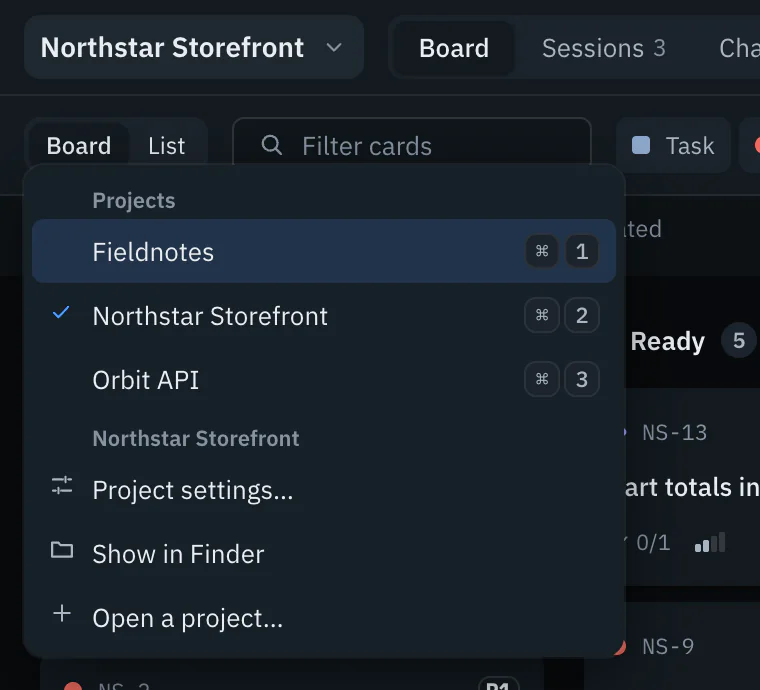
Start working
File a card with C or start a session with On a Mac, ⌘T; on Windows and Linux, Ctrl+T, and keep Needs you in view (G then N). Agents and the board goes on from here.


What it does on your Mac
- Its data lives in
~/Library/Application Support/Wanigan 2/. Projects and history are found in the agents’ own records. - Nothing is written into your projects to make it work: hooks, instructions and the
wanigancommand are handed to each session as it starts. What does write there (copying a skill, adding a project’s MCP server, the live view’s site helper) waits for your click and shows exactly what changes. - Sessions outlive the window. They run in Wanigan’s core, which keeps going after you quit and exits by itself ten minutes after the last session ends with no window open (unless phone access is on). Quitting with sessions running asks first: nothing can notify you while Wanigan is closed.
- No account, no cloud, no telemetry. Wanigan itself calls only GitHub (for updates) and TypeSafe (for Jev), each once you ask. Everything else is the CLIs you already use, run as you.
- Agents run with your permissions, exactly as in your own terminal. Wanigan watches and records them; it does not sandbox them.
- It keeps your Mac awake while sessions run, though the display can still sleep, and only while Wanigan is open. Settings › General turns that off.
Security and privacy goes through what Wanigan protects and what it does not. When something goes wrong, see Troubleshooting.
Release updates
The Rust Edition has no published download yet. The Build Board records progress; release history on What’s New describes earlier versions.
In depth
How the window is laid out
- The rail is always 60 px wide, so there is nothing to fold and no sidebar toggle. Every item shows its name and key as a tooltip, on hover and at once on keyboard focus.
- A project tile shows its key, an amber dot when something there needs you, a blue dot when sessions are running, and a pause mark when it is paused. Wanigan’s mark at the top shows the core’s state on its corner: nothing while it runs, a ring while it connects, a red dot when it is gone. Its tooltip says Core running, Connecting… or Core unavailable.
- Accounts, Skills, MCP servers, Local models and the rest are sections of Settings, shown one at a time beside the list of sections, and each is in the palette too.
- In a narrow window the project bar gives way in steps: under 900 px its words become icons and the name is cut short; under 700 px the tabs scroll in a strip of their own, keeping the current one in view.
- The status line says one thing, the latest outcome; everything it said collects in the notification tray, newest first, with its time. A failure you can retry is drawn in the status line’s own place, pushing the work up, so it never covers a control.
- If one view breaks, it shows its own crash panel and the rest of the window carries on. Text meets WCAG AA contrast (4.5:1) in both themes, measured from the app’s own colour tokens on every test run.
Projects, exactly
- The key comes from the project’s name and never collides with another’s. Change it in Project settings… (up to six characters) and every card is renamed; a key in use is refused.
- The same folder opened twice is one project, and a folder that does not exist is refused. One that goes missing later shows a red banner, and sessions cannot start there until it is back.
- Close project, in Project settings…, waits until no session is running. A closed project leaves the rail and Needs you; opening its folder again brings it all back, cards, sessions and history.
- Folders your agents have worked in come from the Claude Code and Codex conversations of every account Wanigan knows, over the last 30 days, ranked by how many conversations, then by how recent; folders already open are left out. Six show at first (Show all for the rest). The look is capped, says so when it was cut, and only reads.