
The live editor
The design layer and Edits
In short
When you type on the page or try a style, Wanigan keeps the change on its own side and shows it on your real page, while your site stays exactly as it was. The Edits panel lists every change waiting like that, so you can look at it, take it back, throw it away, or make it real when it is right.
On this page
Why a layer
To see whether new words or a new colour work, you usually have to save them first, and a save you regret is a revision to roll back and a page your visitors may already have seen. Wanigan keeps what you change in a layer of its own, laid over the page in the live view. The page goes on showing your change through the layer, reload after reload, and the site does not have it until you say so.
- Edit, in the layer. Type on a part’s words or try a style, and the page shows it at once. Nothing in the site changes.
- Make it real. Words are saved through the site’s own core, into the one thing that holds them. Make real explains how.
- Verify. Wanigan renders the page with and without the layer and says whether the site now shows what you designed. Verify explains how.
What goes in the layer
Three kinds of change go in the layer in this build. Pictures, adding a piece and taking one out are done directly on the page instead, through the site.
| Change | How you make it | What it reaches | Made real by |
|---|---|---|---|
| Words | On a chosen part, E or a double-click types on its words where they are; Retype in a box does the same from the Inspector. See Typing on the page. | That one element, or one stored item the page shows in more than one place | Saving them through the site |
| A style | Try a style on the chosen part. See Styles. | This element, or every one of its kind, with how many said before you choose | An agent, from a brief, on your click (or you, by hand); then Verify finds it in the site |
| A token | A token, for the whole site: a custom property such as --color-accent | The whole site | An agent, from a brief, on your click (or you, by hand); then Verify finds it in the site |
Open Edits and read it
Make a change
Select a part (P), then type on its words or try a style. The Inspector says it is In the layer, as a draft, shows the old value → the new one, and offers Open Edits.
The Inspector on a Northstar product page just after its title was retyped: “In the layer, as a draft”, the old title → the new title, and Open Edits. Picture to come Picture: to come
A screenshot of the real app, with the demo’s data, of what the title above says.
Open Edits
Press On a Mac, ⇧E; on Windows and Linux, Shift+E, or Edits in the toolbar, which counts the drafts waiting. The Edits panel takes the Inspector’s place on the right. Press On a Mac, ⇧E; on Windows and Linux, Shift+E again, or Esc in the panel, to close it, and the chosen part’s details come back.
The Edits panel in the Inspector’s place on the same Northstar page after Make it real: the page’s group marked “this page”, the title’s one card with its words in the site and its style still a draft, each change old → new, and Undo and Nothing to redo above it. Current beta · demo 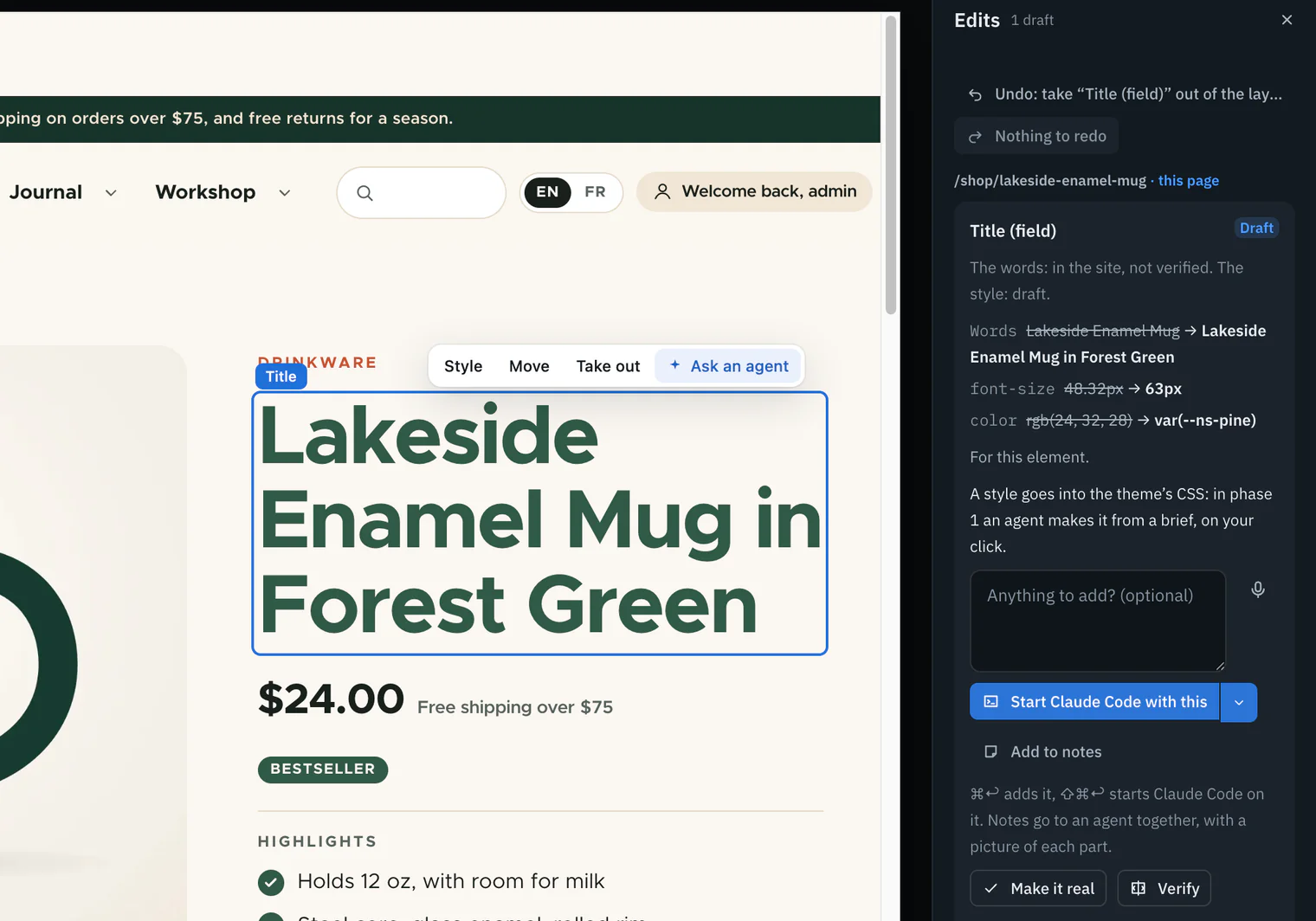
Read each edit
Each edit says what it is, its state, the old value → the new one and what it reaches, grouped by the page it was made on, this page first. Reading an edit goes line by line.
See the page without the layer
The eye in the toolbar, Show the page without the layer, shows the page exactly as the site renders it. The status line says Showing the page without the design layer; choose Show the layer to bring your edits back.
The toolbar’s eye pressed on the same Northstar page: the page as the site renders it, the title’s words saved and its style put in the theme by an agent, and the status line saying “Showing the page without the design layer” with Show the layer. Current beta · demo 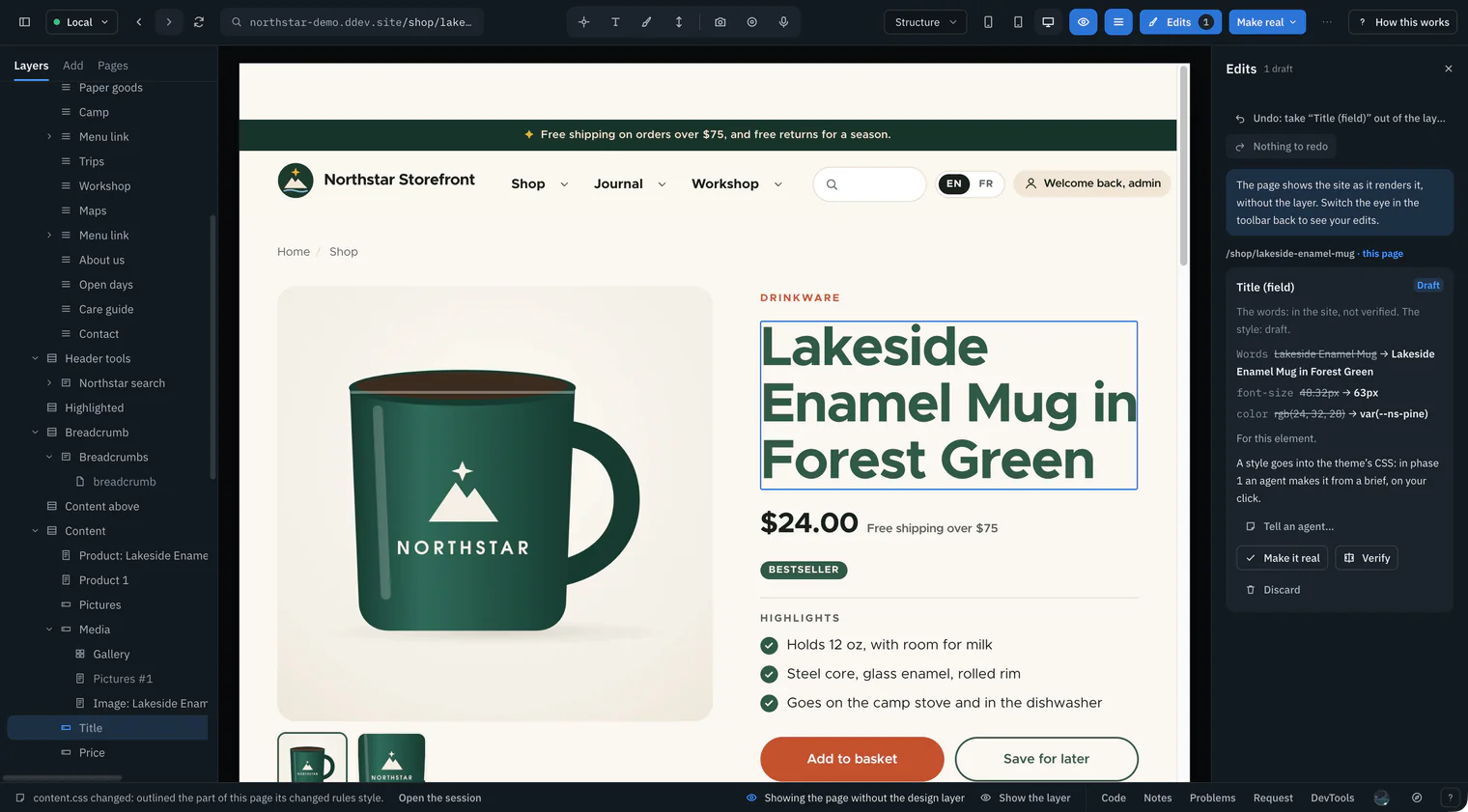
Undo, discard, or make it real
Undo and Redo at the top say what they would do. Discard on a draft takes it out of the layer. When the change is right, Make it real saves it in the site.


Reading an edit
| Line | What it tells you |
|---|---|
| Its name | The element and the part it is in, as the site names them: “Heading in Hero (component)”. |
| Old → new | One line per value: Words, each style property, or the token. A value Wanigan could not read says “not read”. |
| For … | What it reaches: “this element”, “this item, shown twice on this page”, “every Card component (4 elements on this page)”, or “the whole site” for a token. |
| Fragile | The edit is kept only by where its element sits, and what that risks. See lost elements. |
| Orphaned | Why the edit is not shown now. It is never put on whatever is in its place. |
| The verdict | What the last verification found. See reading a verdict. |
What each state means
| State | What it means | What you can do |
|---|---|---|
| Draft | Only in Wanigan’s layer: the page shows it, the site does not have it. | Make it real, Discard, Undo |
| Draft, a style or token | The page shows it. Make it real hands it to an agent to put in the theme; once it is there, Verify finds it in the site and the edit becomes Verified. Not there yet, Verify says so, names the first differences, and it stays a draft. | Make it real (a brief to an agent), Verify, Discard |
| In the site, not verified | Made in the site. Verify compares the site with the design. | Verify. It is never discarded or undone from the layer, since that would not take it out of the site. |
| Verified | The site renders it as designed. | Retire, which archives it and takes it off the list |
| Orphaned | Not shown: its element is not where it was. | Discard it, or bring its element back: it is a draft again once it is found |
When an edit loses its element
A page can change under an edit: content is reordered, a block removed, words changed in the admin. So every time the page loads, Wanigan looks for each edit’s element again, first by what the site says the part is, then by its words.
A draft whose element is gone, or now shows other words, is set aside as orphaned. Edits says why, and the edit is never put on whatever sits in that place now. It becomes a draft again as soon as its element is found. An edit already in the site stays In the site even when a page does not show its element: the words are in the site either way.
An edit is fragile when no part of the site names its element, so it is kept by where it sits in the page. Its words still guard it: if that place shows other words, it is orphaned rather than misplaced. An element with no words cannot be guarded, and Edits says so before you make the edit. WordPress keeps no id for a block, so a block’s words are what tell it apart from another block moved into its place.
Edits made on other pages are left alone until you open them. An orphaned one made elsewhere says it was not found the last time that page was shown; open that page to look again.
Undo, redo and discard
Undo takes back the newest add or discard, and Redo brings it back until you make another change. Each button names the edit it would act on, such as Undo: take “…” out of the layer or Redo: discard “…” again.
Undo never touches the site. When the newest edit is already in the site, the button says Nothing to undo: the newest edit is in the site, because taking it out of the layer would not take it out of the site.
Discard works on drafts and orphaned edits, and Undo brings a discarded edit back. Retire archives a verified edit. While words are being saved to the site, Undo, Redo and Discard wait, so the list never moves between the site saving and the layer recording it.
In depth
Where the layer is kept
Wanigan’s core keeps each project’s layer in its own SQLite database, in Wanigan’s data folder: one row per edit in live_layer_edits, and an append-only list of what was done to the edits in live_layer_actions (add, discard, undo, redo and mark). Undo and redo replay that list, so they are exact, and nothing taken back is lost. The core never writes to the site or to your project.
- At most 300 edits are listed at once per project, holding at most 8 MiB together; past that, Wanigan asks you to make some real or discard some first.
- A project’s log keeps at most 20,000 edits over its life, taken-back ones included. It is never pruned.
- Only you change the layer, from the window. The core gives every edit its id, its time and the state Draft, and keeps nothing the caller sends for those.
- Verification pictures and the page kept before a save sit beside it, under
live-layer/<project>/<edit>/in the data folder, and go once the layer no longer lists their edit. - Wanigan on your phone never shows the layer.
How the page shows it
After every load, Wanigan’s main process resolves each edit on the page: the trace’s parts by identity (for a kind, every part of that kind), then the path inside the part, then a hash of all the element’s words (whitespace folded, FNV-1a, 64 bits). What it finds is tagged data-wl-edit. One stylesheet built only on those attributes is injected at the user origin, each rule !important behind a doubled attribute selector, so the design shows whatever the theme’s rules say. Words go into the element’s own text nodes.
Electron cannot take a user-origin stylesheet out again, so each sheet holds only while the page’s root names its generation in data-wl-layer. Showing the page without the layer is that one attribute.
- Without the site helper’s trace, nothing is resolved by identity, and nothing is called orphaned for it.
- An edit for one of the theme’s named breakpoints is left out whole: this build does not read the theme’s breakpoints.
- While a hosted environment is shown, the layer waits: it belongs to your local site.
- A style may set 35 properties (colour, type, spacing, borders, size, opacity, a few layout values), each a plain value,
var(--token)orcalc(); neverurl(), braces, semicolons, comments or angle brackets.
How an edit names its element
An edit keys on what a part is, never its position: a trace numbers parts in render order, and when two blocks swapped places the numbers stayed while the blocks under them changed. The site helper, from version 4, reports what each part is:
| Platform | What names a part |
|---|---|
| Drupal | Content by entity type, UUID and language, then field and item (a reference by its target’s UUID, so a reorder does not move it); a component by its id and the part around it; block placements, menu links, menus, views, Layout Builder components and paragraphs by their own ids. |
| WordPress | A post by its ID, a term, a field; a block by where it is stored, its path and its name; widgets, menu items, templates and template parts; a theme’s PHP template file by its theme and path. |
Markup no helper explains is keyed by a CSS path from the document, and its edit is marked fragile.