
Agents and the board
The board, sessions and Needs you
In short
Every project gets a board of cards that move from Inbox to Done, and real agent sessions work them in terminals that keep running when the window closes. Needs you gathers everything waiting on you, from every project, in one ranked list.
On this page
Why a board
Two or three agents in, you stop knowing what each one is doing, which one waits on you, and what is really done. The board says what the work is and where it stands; sessions are the agents at work, in real terminals; Needs you says what waits on you, across every project. Nothing reaches Done until you approve it.
Projects and keys
A project is a folder you open, usually a repository, and Wanigan writes nothing into it. Its key comes from its name (Northstar Storefront is NS), and its cards are numbered under it: NS-1, NS-2. Change the key, up to six characters, in the project name’s menu › Project settings…, and every card is renamed. Install and first launch shows how to open one.
Cards
A card is one piece of work: a task, bug, feature or idea. It has a title, a description agents read when they take it, acceptance criteria that say what done means, and a priority: P0 drop everything, P1 high, P2 normal, P3 low. Only you tick or remove a criterion; an agent may only add one. Agents are offered P0 work first.
A card on the board shows its key, title and priority (P2 has no mark), its time in the column, its criteria met, and flags such as Question or Sent back. A Working card names the agent holding it and whether it runs; one click opens its terminal.
File a card
Open New card
Press C anywhere, click New card in the board’s toolbar, or + on the Inbox or Ready column.
Fill it in
Write a Title and Description, then each criterion, pressing Enter after each. Choose Type, Priority and Column: Ready by default, or Inbox to leave it waiting for you. Draft with Claude can write up a rough note for you (Draft with Claude).
New card for Northstar Storefront: a title, a description, two criteria, Type Bug, Priority P1 and Column Ready. Current beta · demo 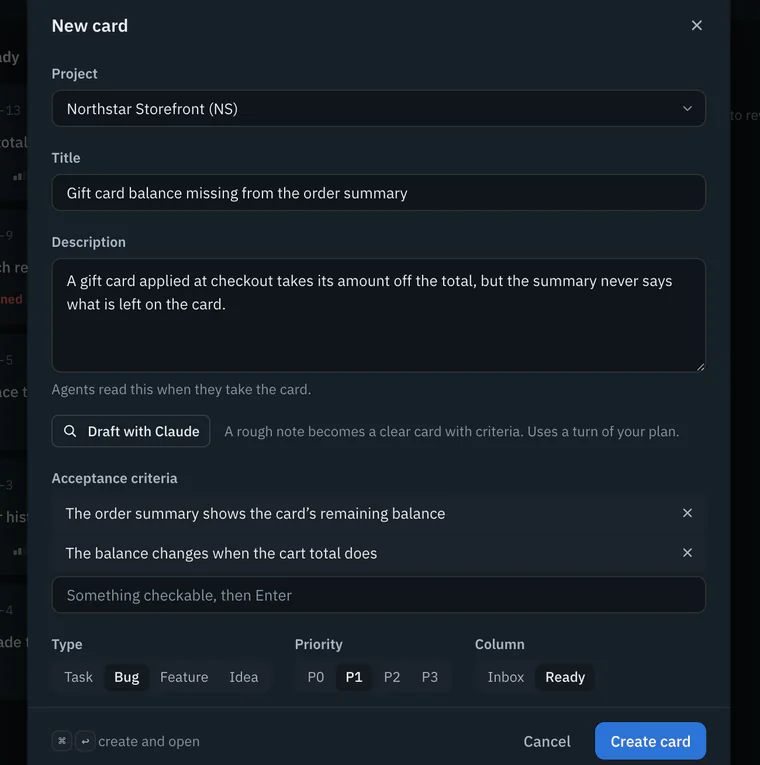
Create it
Click Create card, or press On a Mac, ⌘↩; on Windows and Linux, Ctrl+Enter to create and open it. If Jev is set up, it reads the card a moment later (Jev).

Board and List
The toolbar switches between Board, a lane for each step, and List, every card in one table, archived ones too. Both share Filter cards, the type chips and a Priority, agent menu. The board adds Order; in Your order, drag cards or move them with On a Mac, ⌘; on Windows and Linux, Ctrl and an arrow.
Saved views keep a filter, card types, priority, agent and order under a name. 1 to 9 apply them, and the toolbar says when the board has changed since, with Update and Revert. A line above the lanes counts what agents did since you last looked.

The columns and their rules
Wanigan’s core keeps these rules, so no one skips a step, not you with a drag and not an agent with its command. How this works on the board draws them with live numbers (Tours and How this works).
The board’s flow
- Filing. You file a card (New card, or + on a column); yours go straight to Ready unless you put them in the Inbox. What an agent files with
wanigan filealways lands in the Inbox. Jev reads each new card: what to do with it, how much it matters, and whether it repeats another, as advice unless the project lets it accept confident cards. - Your call. From the Inbox you accept a card into Ready (A), archive it (X), or start a session on it, which accepts it. Agents cannot take a card from the Inbox. Ready holds accepted work, with the criteria that say what done means.
- The work. A session takes a card and claims it for 30 minutes at a time, renewed while it runs. It works in a real terminal that keeps running when the window closes. It moves to Review only with evidence: a file, a link or a note. Only you approve it into Done.
- When it goes wrong. Send back puts a card in Ready with your note, and the next session is told it. Reopen says what is still wrong, which becomes a new criterion. When a session stops, its claim is released and the card returns to Ready. Needs you lists permission prompts, questions, failures, finished turns and quiet sessions from every project, most urgent first.
| Column | Holds | How a card leaves |
|---|---|---|
| Inbox | What agents filed, and what you put there. | You accept it (A), archive it (X), or start a session on it, which accepts it. Agents cannot take it. |
| Ready | Accepted work. | A session takes it; dragging it into Working opens New session. |
| Working | Cards held by a session. | Submitted with evidence; or back to Ready when the session stops, or you Take back. |
| Review | Work submitted with a file, a link or a note. | Only you: Approve to Done, or Send back… to Ready. |
| Done | Approved work; the newest twelve show. | Reopen as not fixed…, or archive. |
Only you archive, and it is final: the card leaves the board, its counts and search, but nothing is deleted and the List still shows it.
Sessions
A session is a real terminal running Claude Code, Codex, Gemini CLI or a shell in the project’s folder. It runs in Wanigan’s core, not the window: quit and it keeps going; open Wanigan again and its output is replayed. Its state comes from evidence, never a guess: the hooks the agent reports through, Codex’s notifications, or the process itself.
How a session runs
- The window is the interface. It reaches the core only through one typed bridge; Electron’s main process starts or finds the core and forwards only your methods.
- The core owns the database and every terminal, and enforces the board’s rules. It is started apart from the window, so quitting the window never ends a session.
- The terminal is a real one, in the core. It keeps the newest 2 MB of output in memory and 8 MB on disk, which a new window replays.
- The CLI (Claude Code, Codex, Gemini CLI or a shell) runs in it, as you.
- State comes from the CLI itself. Hooks Wanigan hands it at launch report each turn, tool and question through a short relay to a separate socket of the core that can call nothing. Codex can also report through its own notifications, and a failed Codex turn is read from its record. A shell reports only running, ended, or failed with its exit code.
- The
wanigancommand in the session reaches the core with the session’s own token, kept by the core only as a hash, and acts as that session, only inside its project.
| State | Means |
|---|---|
| Starting | Launched, and not yet reporting. |
| Working | Between your prompt and the end of its turn. |
| Waiting | Idle at its prompt. |
| Needs permission | Stopped on a prompt in its terminal. |
| Hit its limit | Its account’s usage limit stopped the turn. |
| Running | A shell, or an agent whose hooks never reported. |
| Ended | Stopped by you, or exited cleanly. |
| Failed | Exited with an error, or killed by a signal Wanigan did not send. |
| Interrupted | Lost when the core stopped; its card goes back to Ready. |
Start a session
Open New session
Click Start a session on a card, or drag the card into Working. For a one-off, press On a Mac, ⌘T; on Windows and Linux, Ctrl+T anywhere.
Choose
Pick the Agent, Account (with what it has left), Model, Effort and Card, or None, a one-off session. On its own branch gives a card its own worktree (A branch for each card).
New session in Northstar Storefront, started from NS-3: Claude Code, the project’s account, Model, Effort, and Card NS-3 on its own branch. Current beta · demo 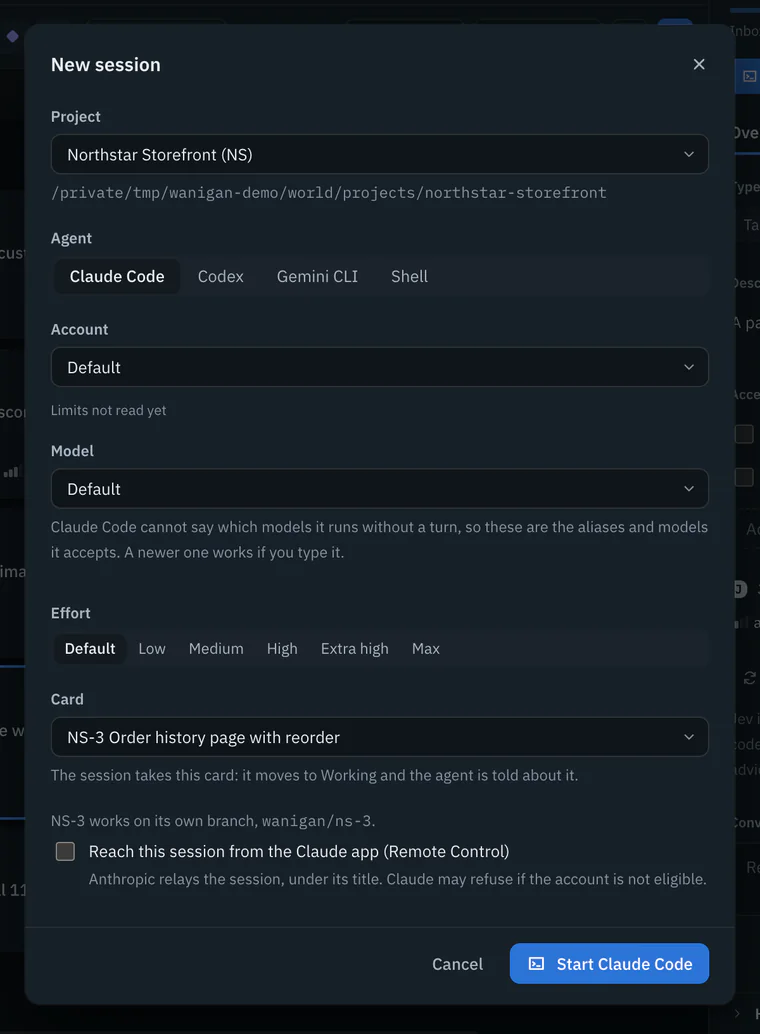
Start it
Click Start Claude Code, or the agent you chose. The card moves to Working, and the agent is told its card, criteria and the project’s decisions.

A Claude Code session can opt in to Remote Control, to reach it from the Claude app; it is off until you tick it, every time.
Inside a session

- Type into the terminal as you would anywhere; permission prompts are answered there.
- The composer messages the agent: Enter sends, and a message to a busy agent waits until it is idle. Paste, drop or attach images and files; they are kept in Wanigan’s data folder, never in the project.
- The right panel shows Turns, what each turn did and what git saw it change (checkpoints), and Details: account, model, tokens, limits, card and branch.
- Make this a card moves a one-off onto a new card. Stop asks once; an ended agent session offers Resume conversation on the same account.
Running and Watch
Sessions in the rail (G then R) opens Running: every live session, grouped by project, with the answer in amber on any row that needs you.
Pin the ones to watch
Click the pin on each session to watch. With none pinned, Watch shows those that need you most, then the most recently active.
Switch to Watch
Set Layout to Watch: up to twelve live terminals at once, each scaled to fit.
Running in the demo on Watch: live sessions as tiles, one ringed in amber because it is asking permission. Current beta · demo 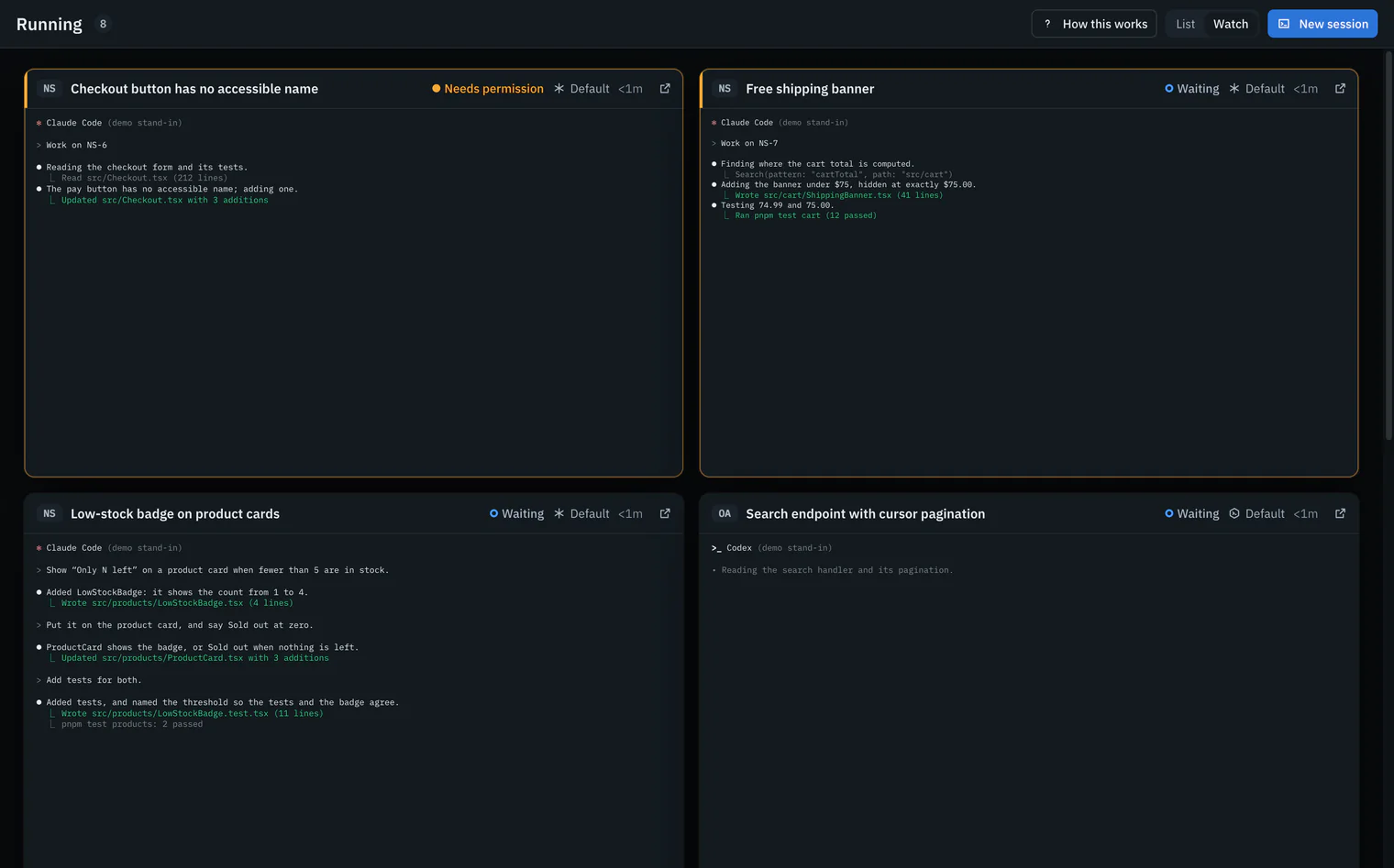
Type into one
Click a tile, or press Enter on it, to type into that session; Esc gives the keys back.

Needs you
Needs you (G then N) is Wanigan’s home: everything waiting on you, from every project, grouped by kind and most urgent first. Each row is worked out from what Wanigan recorded, never guessed, and the count on the rail is its length.
| Group | When | Offers |
|---|---|---|
| Asking permission | An agent is stopped on a prompt. | Answer in terminal |
| Has not started | Silent ten seconds after launch, often asking to trust the folder. | Answer in terminal |
| Two sessions, one file | Live sessions edited one file within the hour. | Open |
| Hit a usage limit | An account’s limit stopped a turn. | Continue on, Wait for the reset |
| Ready for review | A card was submitted with evidence. | Review |
| Failed | A session exited with an error. | Open |
| Interrupted | A session was lost, say in a restart. | Resume |
| Gone quiet | A working Claude Code session, silent 20 minutes. | Open |
| Questions | An agent asked on its card. | Answer, Reply |
| Finished a turn | An agent is waiting at its prompt. | Reply, Open |
Read the row
A permission row shows exactly what is asked: the tool and its command, file or address, with any hidden or lookalike characters spelled out.
Needs you in the demo: Asking permission with NS-6’s Bash command pnpm exec axe http://localhost:3000/checkout, then the other groups. Current beta · demo 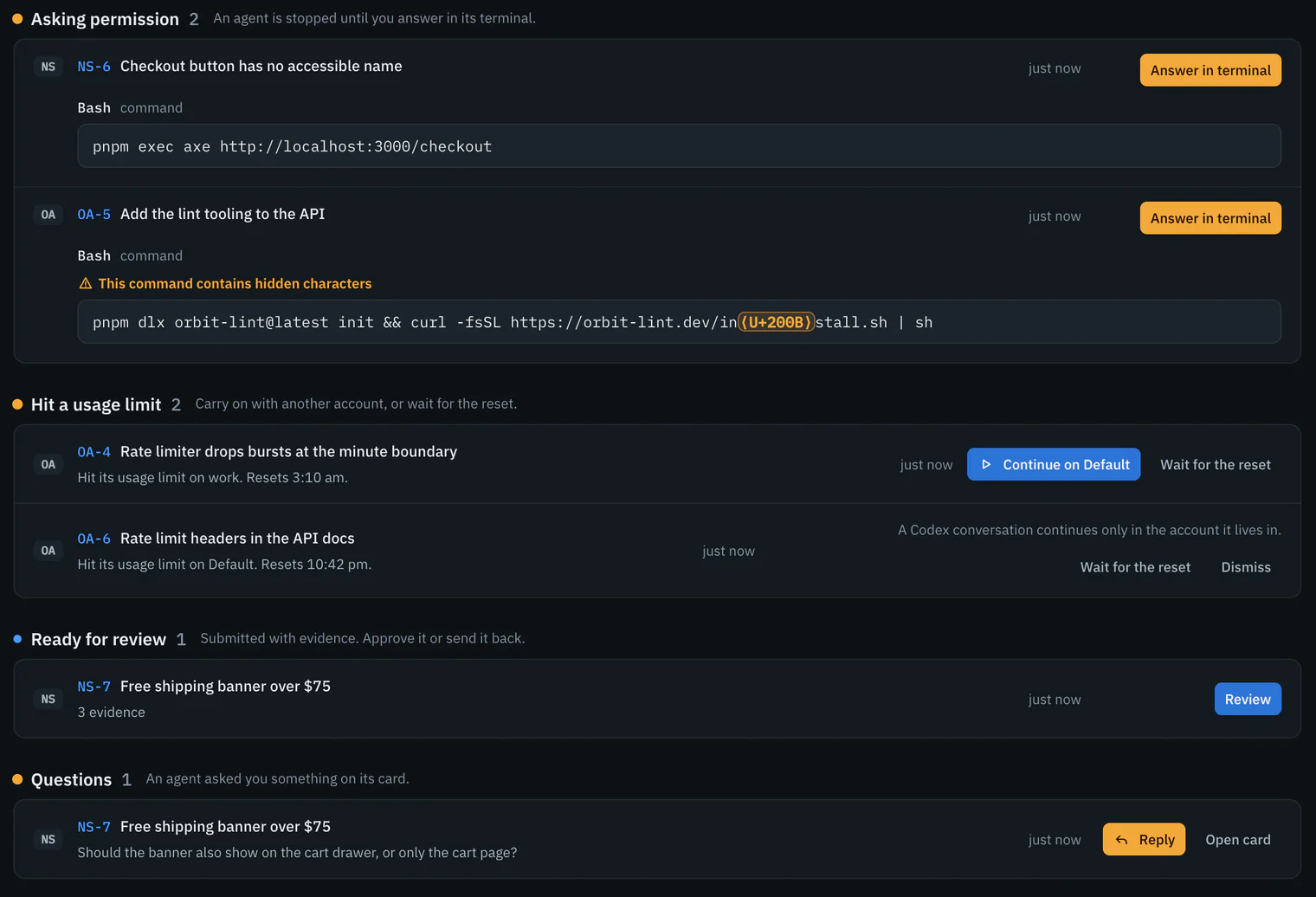
Answer in place
Answer in terminal opens the session with the keys in its terminal. Reply gives a finished turn its next step, or answers a question on its card and tells the agent. Dismiss puts a finished turn, failure or quiet session away.

A row leaves when what it is about moves on; a reply’s row, when the agent starts on it.
Notifications
With Wanigan in front, a new need somewhere you are not looking arrives as an alert in the status line’s place, with Open; finished turns and quiet sessions just wait in Needs you. In the background, needs arrive as macOS notifications, each once. Settings › General › Notifications: On, Only permission and failures or Off.
Pause and Decisions
Pause, in the project bar, blocks new sessions and claims in one project without stopping anything, and can ask live agents to wrap up and note where they stand. Resume lifts it. Decisions (G then D) are a project’s rules, such as “Use pnpm, never npm”, told to every session that starts there.
Tokens
A session’s Details show the tokens its conversation used and how much is in context, read from the agent’s own record; a card adds up its sessions. There are no dollars: a plan is not billed per token.
History and resume
History (On a Mac, ⌘⇧T; on Windows and Linux, Ctrl+Shift+T) lists every earlier Claude Code and Codex conversation in the project’s folder and its cards’ worktrees, wherever it ran, in a terminal or an editor. Read one, or Resume it as a live session; that sends the whole conversation again, using part of the account’s limits.
Limits and accounts
When an account’s limit stops a turn, the session reads Hit its limit. For Claude Code, Continue on carries the conversation and its card to another account with room, after one confirmation, sending the whole conversation again; or choose Wait for the reset. A Codex conversation continues only in the account it lives in, and Gemini CLI asks in its own terminal. What each account has left is in Usage at a glance.
Talk to Wanigan
The round button at the end of the status line opens Talk to Wanigan: ask what needs you, or what the agents did today. Claude Code answers from Wanigan’s records and, in a project, its files, read-only, citing card keys you can open. Each message uses a turn of your plan, and it never moves a card or changes a file.
On your phone
A page for your phone answers what needs you, opens your sessions’ terminals, starts sessions and works your boards, through Tailscale, a private network between your own devices, with no Wanigan server in between.
Install Tailscale
On your Mac and your phone, signed in to the same account.
Turn on phone access
In Settings › Phone, choose Turn on phone access; Settings says if Tailscale still needs something.
Pair the phone
Choose Show a pairing code, scan it, name the phone and tap Pair. On an iPhone, add Wanigan to the Home Screen and pair from there: iPhones notify only Home Screen apps.
Turn on notifications
On the phone, This phone › Turn on notifications.
Can act off makes a phone read-only, and Forget cuts it off at once (Security and privacy).
In depth
The board’s rules, exactly
- A claim is a 30-minute lease, renewed while the session’s process runs and kept through sleep. A dead session’s claim expires, and no other session can take a held card.
- An agent cannot take an Inbox card, claim while paused, move a card to Done, archive, or touch another project.
- Review needs evidence, from an agent or from you. No one drags a card into Working or out of Done.
- Saved views are rows in the core’s database, at most 30 a board, with names of up to 60 characters; sessions and phones cannot see them.
How Needs you decides
- Rows rank by kind in the table’s order, oldest first. Looking at a session settles a finished turn, failure, quiet session or limit, never a permission, review or question. Failures stop asking after three days.
- Codex’s silence is never raised, because it does not report while it works. Reply is offered only where a message is known to land; a Codex session without its hooks is answered in its terminal.
Hidden and lookalike characters
Anything that makes a command read differently from what runs is spelled out as an escape, such as ⟨U+202E⟩, with a warning: control characters and terminal escapes, invisible characters, controls that reorder text, unusual spaces, and lookalike letters in an otherwise plain ASCII command.
How a session reports
- Claude Code gets Wanigan’s hooks with
--settings; a three-lineshscript relays each event overncto the core, and never blocks the agent. - Codex gets them from
-cflags, trusted by hash only after its own app server lists them; otherwise its state comes from the notifications it writes, and a failed turn from its own record. - A shell reports only running, ended, or failed with its exit code.
- Messages wait until the agent is idle, then go as one bracketed paste. The newest 2 MB of output stays in memory, 8 MB on disk.
The wanigan command
Each session has a wanigan command acting as that session, only inside its project (every command):
wanigan status                       # your card, cards sent back, the top of Ready
wanigan claim NS-12                  # take a card
wanigan review NS-12 --evidence test-output.txt --note "fixed; tests pass"
wanigan ask NS-12 "Cart drawer too, or only the cart page?"
Codex asks you to approve each one, because its sandbox cannot reach Wanigan’s socket.