
The live editor
Compare, Go to and widths
In short
Go to opens any page of your site from a few letters of its title, and the widths show it as a phone or a tablet would. Compare lays your local page over the same page on a hosted site such as Live and points at every difference, without changing anything there.
On this page
Go to a page
Finding a page through admin menus, or typing a long address, takes you away from the work. Go to finds any page of the site from a few letters.
Open Go to
Click the address field, press On a Mac, ⇧Space; on Windows and Linux, Shift+Space in the live view (not while you are typing), or On a Mac, ⌘⇧Space; on Windows and Linux, Ctrl+Shift+Space anywhere in a project. Go › Page of the Site… in the menu opens it too, and the same keys again close it.
Go to open over the address field on Northstar with “mug” typed: matching products listed under Content, and the keys to open, edit or open in the browser along the bottom. Picture to come Picture: to come
A screenshot of the real app, with the demo’s data, of what the title above says.
Type
Type a few letters of a title, an admin or structure page, a path such as
/aboutoradmin/content, or an id:12is node 12 on Drupal and post 12 on WordPress. Results rank as you type, and what you choose often rises.Choose
Enter opens it in the live view, On a Mac, ⌥↩; on Windows and Linux, Alt+Enter opens its edit form, and On a Mac, ⌘↩; on Windows and Linux, Ctrl+Enter opens it in your default browser. → at the end of what you typed, or Tab, shows its tasks; On a Mac, ⌘C; on Windows and Linux, Ctrl+C copies its address.
A Northstar product’s tasks in Go to after →: Open in the live view, Edit, the product’s own tasks, Open in the default browser and Copy the address. Picture to come Picture: to come
A screenshot of the real app, with the demo’s data, of what the title above says.
Before you type, Go to shows this page’s own tasks, the pages you visited lately and the ones you use most. With the site helper it searches the whole site; without it, the pages the live view has seen and the links on the page shown. Pages, in the Structure panel on the left, holds the same list.
Phone, tablet and full width
The widths in the toolbar show the page as a phone (390 px), a tablet (768 px) or at full width. Press 1, 2 or 3 in the live view while nothing is typed into. In Compare, the same keys choose Compare’s own widths and leave the page’s width alone.
Local and hosted environments
Your local site is where you work, and a hosted environment such as Dev, Test or Live is what people see. Wanigan can show the same page on each, read-only, from the site menu at the left of the toolbar.
Keep an environment
Open the site menu and choose Site settings…. Under Hosted environments, Found in the project’s files lists each environment Wanigan found, with the file and how. Choose Keep, or Add an environment with a name and an address. Only the ones you keep are in the menu.
Site settings’ Hosted environments for Northstar: Live kept (the demo’s Live stand-in), with where it came from, and Add an environment. Picture to come Picture: to come
A screenshot of the real app, with the demo’s data, of what the title above says.
Show a page there
In the site menu, under Show this page on, choose the environment. The same page opens there, read-only, and the status line says so. Choose Local to come back.
The site menu open on Northstar: Show this page on Local or Live (read-only), Compare Local with Live… with ⇧C, and Site settings…. Picture to come Picture: to come
A screenshot of the real app, with the demo’s data, of what the title above says.
On a hosted environment you can still point at parts and write notes for an agent. Nothing there can be edited, the site helper is not used, and the design layer stays with your local site.
Compare Local with Live
Start Compare
With an environment kept, press On a Mac, ⇧C; on Windows and Linux, Shift+C, or choose Compare Local with … in the site menu. Wanigan takes the page whole on Local and on the environment at the same width, and says it is asking the hosted site for that page now, because you pressed Compare.
Look at the two
Five ways to look: Slider wipes between them, Onion skin shows one through the other, Difference lights up only the pixels that differ, Flip shows one then the other in the same place, and Side by side scrolls the two together. Change the width with Phone · 390, Tablet · 768 or Desktop · 1440.
Compare on the Northstar product page, on a site with no hosted copy: Before and now at Desktop · 1440 in Slider, the changes listed on the right, each boxed and numbered on the picture with the part it is in. Current beta · demo 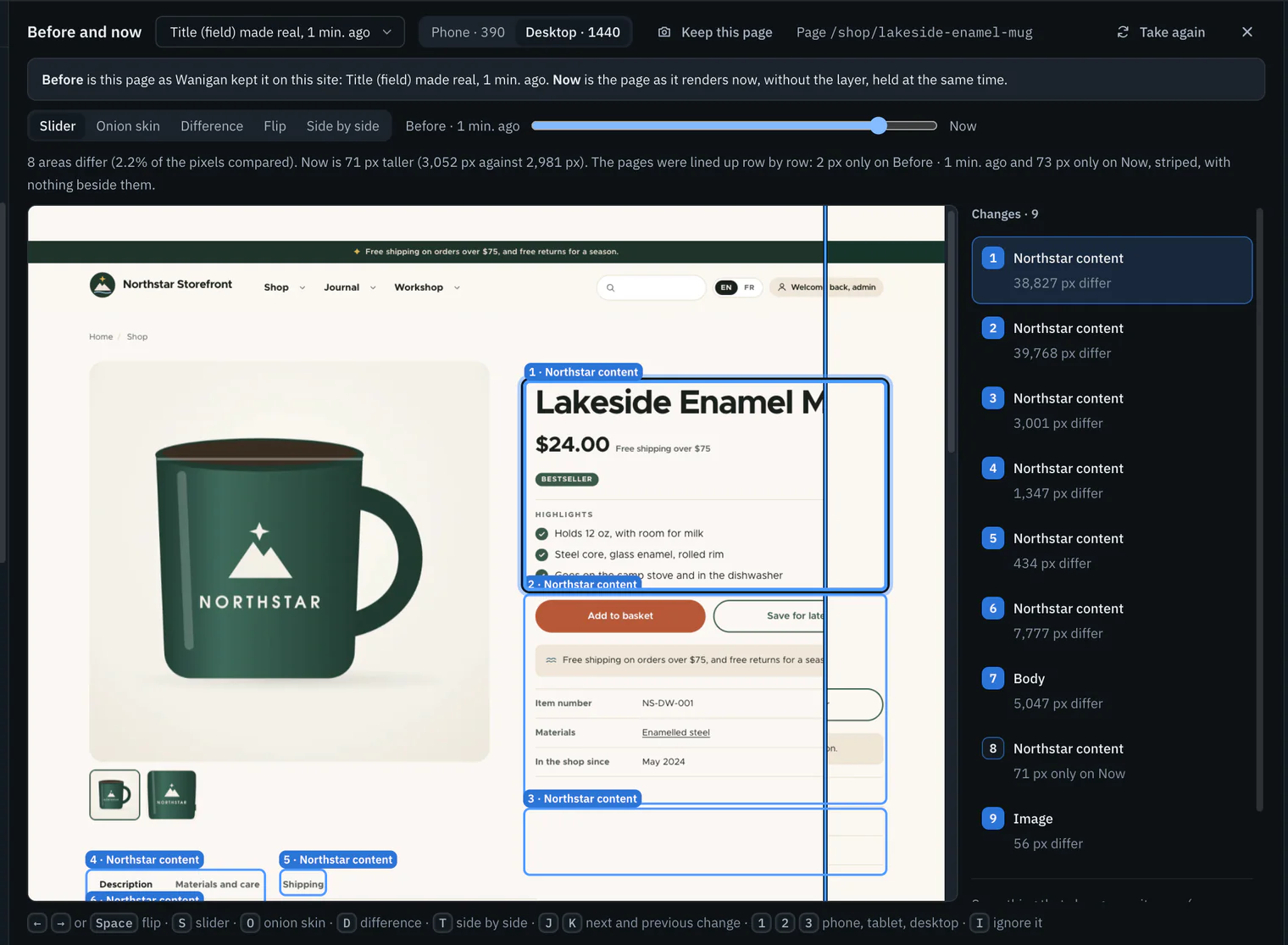
Step through the changes
J and K go to the next and previous change. Each is boxed, numbered and named by the part of your local page it overlaps, with how many pixels differ. A section only one side has is a striped band, not everything below it marked as changed.
The same comparison in Difference: changed pixels in Wanigan’s blue over a faint ghost of the page, each change boxed and numbered. Current beta · demo 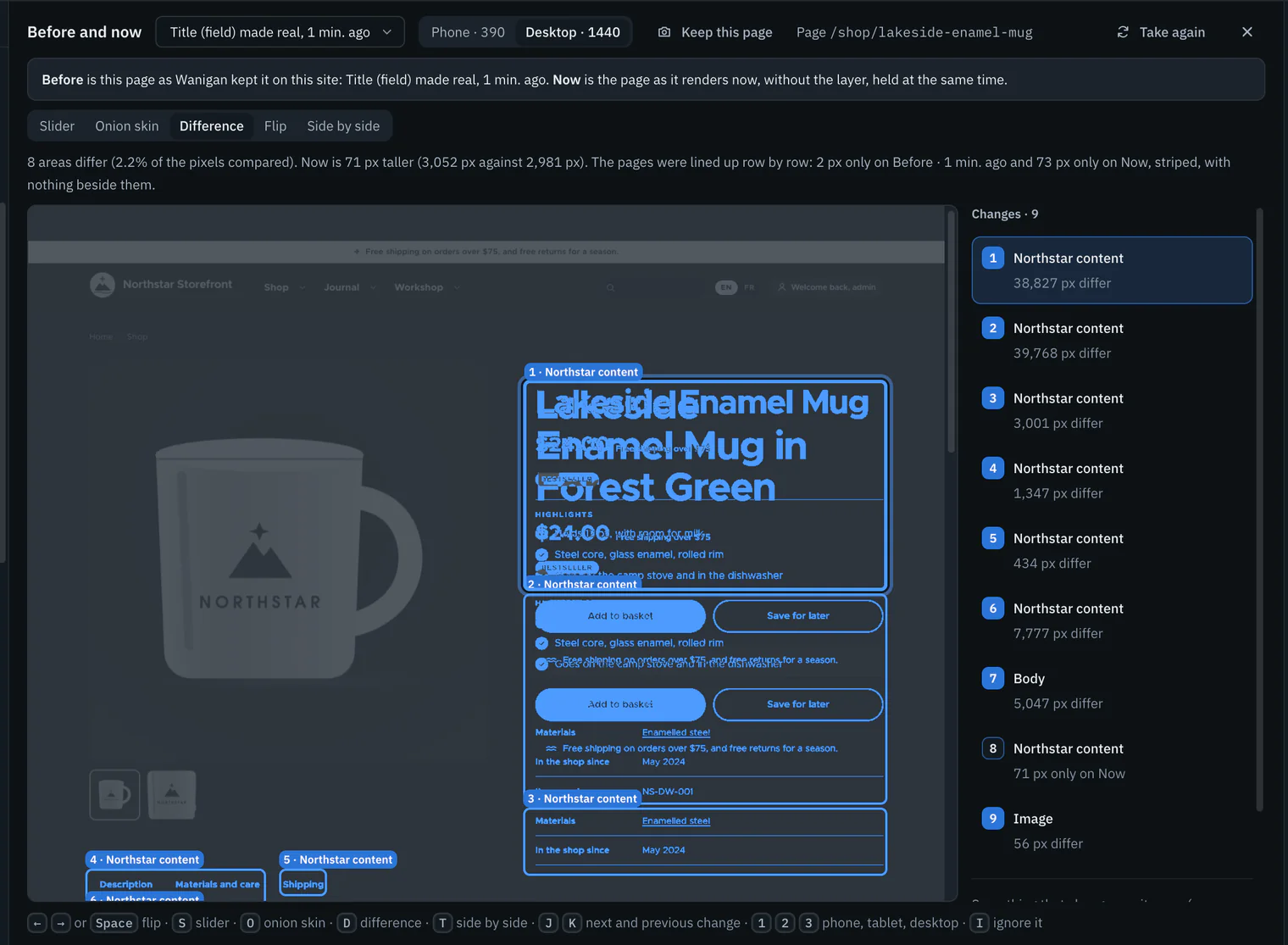
Ignore what changes on its own
A slideshow or a clock differs every time. Press I (Ignore on this page) or On a Mac, ⇧I; on Windows and Linux, Shift+I (On every page) to leave it out; it is remembered for the site at that width. Compare it again brings it back.
Leave
Press Esc or On a Mac, ⇧C; on Windows and Linux, Shift+C. The page comes back exactly as it was, without loading again.


| What it does | Mac | Windows and Linux |
|---|---|---|
| Show Local, or the hosted page | ← or → | ← or → |
| Flip to the other | Space | Space |
| Slider | S | S |
| Onion skin | O | O |
| Difference | D | D |
| Side by side | T | T |
| Next change | J | J |
| Previous change | K | K |
| Phone, tablet or desktop width | 1 or 2 or 3 | 1 or 2 or 3 |
| Ignore the change on this page | I | I |
| Ignore the change on every page | ⇧I | Shift+I |
What reaches a hosted site
A hosted site hears from Wanigan only when you show a page there or press Compare. Wanigan asks it for nothing in the background. While a page is shown, it loads what it loads, as in any browser.
- Each environment opens in its own private session, kept in memory, sharing no cookies with your local site.
- Your local site’s helper token never goes there, neither for the page nor for Compare’s picture.
- Its certificate is checked as any browser would check it. The one exception is a copy of the site you typed in that runs on this computer, trusted by your own mkcert authority, as the Local tab is.
- Only requests that read leave it: GET, HEAD and OPTIONS. No form can be sent, nothing in the view can change the site, and whatever a page would load by POST stays empty.
In depth
How Go to finds and ranks
Every word you type must match a destination’s label, the words it goes by, its type, where it sits or its address, weighted in that order so a label match leads. A starting match beats the start of a later word, which beats an acronym (“ct” is Content types), which beats letters in the middle. One or two typos are forgiven and accents ignored. Equal matches go to what changed last, then to the shorter label.
What you choose is remembered on this computer, per project, up to 200 pages. A choice counts half as much after a week, and older ones still count for something. The lift is capped, so a favourite rises above a better-spelled stranger but never above a whole better class of match.
- The helper lists destinations at
GET /_wanigan/findand searches with?q=as you pause, on the site’s own address, with the helper’s token and no redirects followed. The list is kept until the site’s change counter moves, three minutes pass, or you refresh. - On Drupal the list holds the admin menu with its tasks, each kind of content with its management pages, views, the front page and recent content; the search covers content, terms, users and media by label, checked against your access.
- On WordPress the helper lists pages only for a logged-in user, so log in in the live view first.
- For a typed query, Content and Pages show eight results each before “more”.
- Opening in the default browser sends only a path of the site, never the helper’s token.
Where environments come from
| Source | What is read |
|---|---|
| Drush site aliases | drush/sites/*.site.yml, each alias’s uri; Drush 8’s *.aliases.drushrc.php |
| WP-CLI aliases | wp-cli.yml, each alias’s url |
| Pantheon | The site named by pantheon.yml with ddev’s Pantheon provider, Lando’s Pantheon recipe or a variable: its dev-, test- and live- addresses |
| Stage File Proxy | Its origin, in settings or exported configuration, named Live |
| Environment variables | ddev’s web_environment and compose files, where the key names an environment, such as PROD_URL or STAGING_HOST |
| A README | Table rows and list items that begin with an environment’s name; never prose |
.envfiles are never read.- An address is https only (an http address found in a file is read as https), with no user name, password or query, and never one of this computer’s own hosts, unless you type a copy of the site yourself.
- A name is up to 24 characters and never “Local”. At most eight are kept, ordered Dev, then the test stages, then Live.
- When two files name a Live, the site’s own domain comes before Pantheon’s live- address, which is often frozen or redirects.
How Compare lines pages up
Both pages are taken whole in hidden windows at 390, 768 or 1440 px: Local in the live view’s session with the helper’s token, the hosted page in its own private session. A page is compared down to 8,000 px, and the viewer says when one went further.
Each row of pixels gets a fingerprint, its colours rounded. Rows are lined up with patience diff: rows equal at the top and bottom first, then rows that occur once on each side as anchors, again between each pair. A blank row anchors nothing, and fewer than eight matching rows between two changes count as a coincidence. Rows one side has beyond that become a band beside nothing, never counted as changed pixels.
Rows side by side are compared pixel by pixel by YIQ colour distance, where brightness counts most. A lone differing pixel with no differing neighbour is anti-aliasing, not a change. Differing pixels are grouped into 16 px cells, touching cells into one box, and each box is named by the local part it overlaps most, the smallest of near-equals. A band is named by the smallest part at least half the page wide that holds every place it could sit.
An ignored area is a rectangle of the local page at one width, on one page or every page; the core keeps up to 60 for the project. It is left out of the row fingerprints too, so it never stops the rows around it lining up. When either side answers with an error, such as a 404, Compare says its picture is that answer.