
The live editor
Styles, live
In short
Trying a new colour or spacing usually means editing a stylesheet, reloading and guessing again. Here each value shows on the page as you move its control; what you keep waits in Wanigan’s layer, and an agent makes it in the theme’s own styles when you hand it over.
On this page
Try a style
Choose the part
Select it on the page (P) or in Layers. See Picking and the Inspector.
Open Style
Press Style in the toolbar or in the part’s action bar on the page, or choose Edit ▾ › Try a style in the Inspector. Style has no key of its own: S is Compare’s slider and On a Mac, ⇧S; on Windows and Linux, Shift+S is Snap.
Try a style open in the Inspector’s Design tab for the Northstar product title: the For choice, then the controls from Text colour to Align, a changed one marked with its reset, and Show it on the page and Done.. Current beta · demo 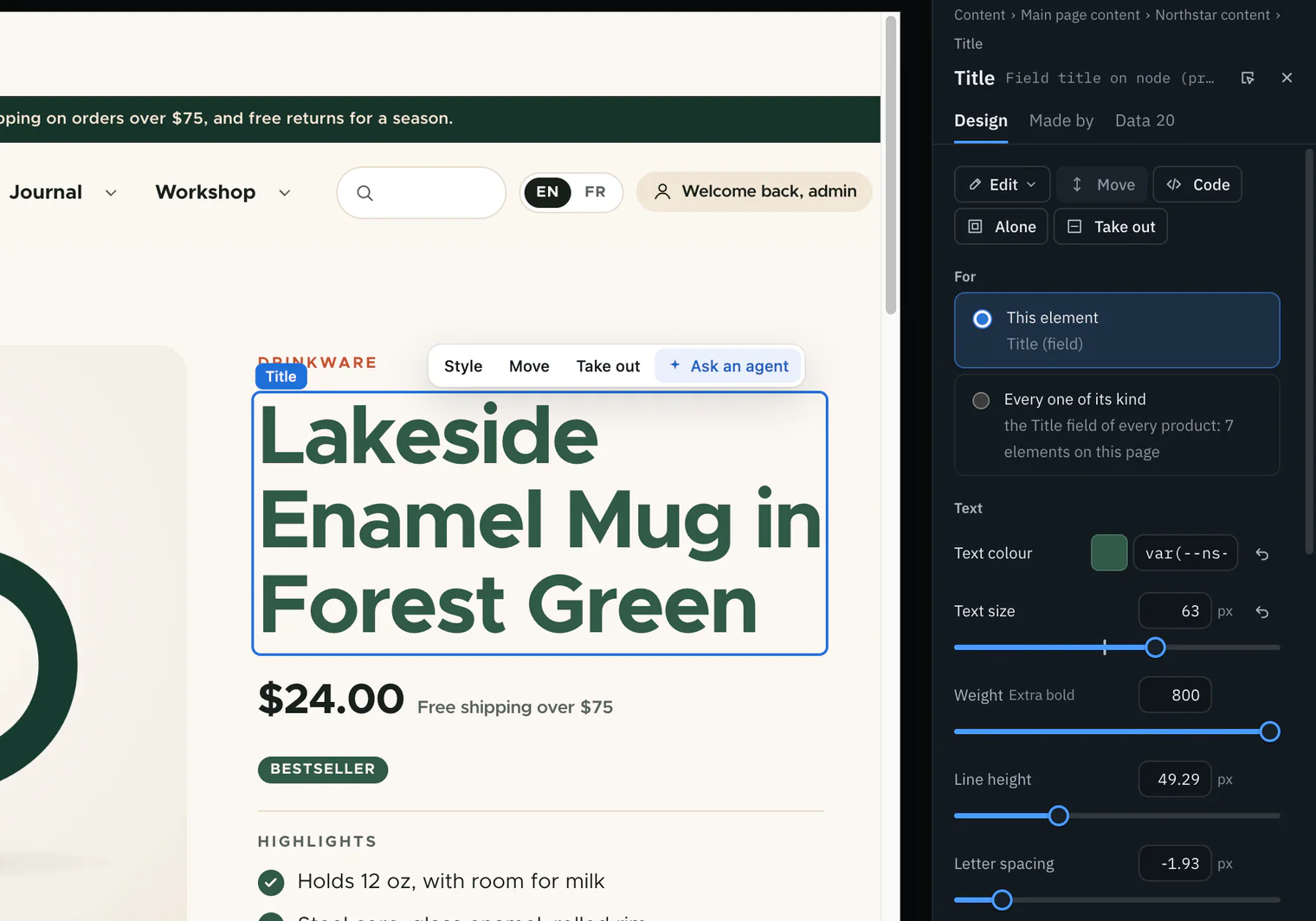
Move a control
Each value shows on the page as you change it, before it is an edit. Over an edit the layer already shows, the new value shows too.
A new text colour being tried on the Northstar hero heading: the heading on the page already in the new colour while the Text colour field is open in the Inspector, the site’s own colours under its swatch.. Picture to come Picture: to come
A screenshot of the real app, with the demo’s data, of what the title above says.
Choose what it is for
Under For, choose this element, or Every one of its kind, which says what that reaches and how many elements that is on this page before you choose it, and shows the style on every one as you try it.
Try a style on a Northstar product card with Every one of its kind chosen: the For choice naming the kind and how many elements on this page, and the new style shown on every product card in the grid.. Picture to come Picture: to come
A screenshot of the real app, with the demo’s data, of what the title above says.
Keep it
Show it on the page, or Enter in a field, keeps it in the layer as a draft. Reset takes the values back. Done, or choosing another part, takes the preview away.

The controls
| Control | Sets | How |
|---|---|---|
| Text colour | color | A swatch and a box for hex or rgb(), with the site’s own colours under it |
| Background | background-color | The same as text colour |
| Text size | font-size | A slider and a box in pixels, 8 to 96 |
| Weight | font-weight | Steps of a hundred, said by name, Light to Extra bold |
| Line height | line-height | A slider and a box |
| Letter spacing | letter-spacing | A slider and a box, in half steps, below zero too |
| Align | text-align | Left, Centre, Right, Justify or Start |
| Padding | padding-top, padding-right, padding-bottom, padding-left | Four sides, 0 to 160, with a link that keeps them the same |
| Space around | margin-top, margin-right, margin-bottom, margin-left | Four sides, 0 to 160, linked the same way |
| Corners | border-radius | A slider and a box, 0 to 48 |
| Gap | gap | A slider and a box, 0 to 96 |
Every length is a slider and a number box bound together: move either and the other follows, and the page shows it as you go. The arrow keys step both, and On a Mac, ⇧; on Windows and Linux, Shift with an arrow takes ten steps. A range widens for a value already past it rather than cutting it short. The slider starts at the value the site gives the part, and marks it on the track once you move away from it.
Each field you change has its own undo beside it, and Reset puts every field back. Only what you change is tried and kept, and Enter in any field keeps the style, once.
The site’s own colours
A colour field offers the colours your site already uses, under the swatch, in groups that say where each came from: the palette the platform declares (on WordPress, the theme’s and global styles’ colours, read through the site helper; Drupal core declares none), the theme’s own colour tokens, and the colours the page itself uses most, by how much of the page each covers. A palette colour or a token is written as the site writes it (var(--wp--preset--color--accent), var(--brand)), so it follows the site if the theme changes it. Nothing is made up: a group with none is left out, and a palette not read yet, such as a page builder’s own colours, is said.
One element, or every one
A style is for the one element you chose unless you say otherwise. Every one of its kind reaches what the site makes the same way, said in the site’s terms:
- “every Card component”, or “the heading in every Card component” for an element inside one;
- “the Body field of every article”;
- “every card inline block placed in a layout”, a Layout Builder block on Drupal;
- “every main menu block placed in a region”, a block placed in Block layout.
Before you choose it, the option says how many elements that is on this page; while you try, the style shows on every one. It is offered only when the part has a kind: a menu link, a template or a theme’s template file has none beyond itself.
A token for the whole site
Open the token
In the style panel, open A token, for the whole site.
Name it and set it
Type the Custom property, such as
--color-accent, and its Value, then press Change it for the whole site.A token, for the whole site, open under Try a style on the Northstar page: the Custom property and Value fields filled in, and Change it for the whole site.. Picture to come Picture: to come
A screenshot of the real app, with the demo’s data, of what the title above says.
It is set on the page’s root, so everything that reads the property from there repaints together; a part that sets the property itself keeps its own value. Only a custom property, a name starting with --, changes for the whole site.
What happens afterwards
A style you keep is a draft in the design layer, and the page goes on showing it. Wanigan never writes a style into the theme’s stylesheets by hand: a style belongs in the theme’s CSS, so an agent makes it, from a brief, when you hand it over.
- In Edits (On a Mac, ⇧E; on Windows and Linux, Shift+E), the style’s state says: “In Wanigan’s layer: the page shows it. Make it real hands it to an agent to put in the theme; once it is there, Verify finds it in the site.”
- Make it real keeps the page as it is now, for Verify to compare with later (the card says “Keeping the page as it is now, for Verify, and writing the brief…”), answers “A style goes into the theme’s CSS: in phase 1 an agent makes it from a brief, on your click.” and opens a note with the brief written out.
- Add anything you want to say, then Add to notes, send it to an agent that is running, or, when none runs, press the button that starts one with it (Start Claude Code with this, for example). Nothing starts by itself.
- Once the agent, or you, has put the style in the theme, choose Verify on the draft. Verify renders the site without the layer and compares it with the design: when the style is there, the edit becomes Verified. When it is not there yet, its card says “Not in the site yet”, which step failed and at what widths, and the first differences, such as “At 1440 px, the title: font-size is 52px in the site, 63px in the design.”, and the edit stays a draft until you verify again.
- One element is one check. If you also retyped that element’s words and made them real, Verify on either card checks the words and the style together, in the same renders, and both cards get the verdict. A style nobody has handed to an agent yet is left out unless it is the card you pressed, so verifying words never waits on a style.
Make real in the toolbar saves the words on the page and leaves each style waiting in Edits, saying what it needs.
The brief for a style
A note from the live view of https://northstar-demo.ddev.site/:

1. Change this style.
   Made by (innermost first): ‹each part around the element: its name, kind, component, template and block›
   An edit in Wanigan’s design layer, shown on the page but not in the site yet: ‹the element, as Edits names it›, for this element.
   Its element: ‹the element, then what the site stores it as and the path inside it›.
   Why Wanigan did not make it real itself: A style goes into the theme’s CSS: in phase 1 an agent makes it from a brief, on your click.
   Style in the layer (not saved): color ‹the colour the page showed› → #1e6fd9
   Make it in the site’s own styles, the way this theme already styles things (its classes or CSS), not as an inline style.

A picture of each part, as it looked, is attached in the same order.
The agent receives A picture of the part as it looked, when the live view shows the page the edit was made on; otherwise the brief says why no picture is attached.
Words from CODE src/renderer/src/components/live/note-store.ts notesText; src/renderer/src/lib/live-layer.ts layerNoteLines
In depth
How a style shows
A style being tried is one preview that the page script owns. Each element it reaches is marked data-wl-try and given each value in a custom property of its own, which one stylesheet with no values of its own reads. That sheet outranks the layer’s own rule for the same property, which is why a property already in the layer shows its new value too. Every change replaces the last preview; Reset, Done or choosing another part takes it away, and each element’s style attribute is put back as it was written. Tries reach the page in the order you made them.
A kept style is shown by the layer’s own stylesheet, which targets only the elements tagged with the edit’s id (data-wl-edit) and always wins (!important and a doubled attribute selector), so the page shows the design whatever the theme’s own rules say. The stylesheet is never shipped; whether the theme’s own change wins the cascade is what Verify proves.
Values the layer refuses
Edits can also come from an agent, so every value is checked. The layer prints words, numbers with units, colours, var(--token), calc(), quoted font names and commas, up to 300 characters. It refuses url() and image-set() (the layer loads nothing), expression(), element(), attr() and env(), any semicolon, brace, angle bracket, backslash, @ or comment, and a quoted name that does not close. A refused value says “That is not a value the layer will set for” the property.
The layer takes 35 style properties: colour, type, spacing, borders and shadow, size, opacity and a few of layout. The style panel offers the 15 above. A style applies at every width: Wanigan does not keep a style for one breakpoint yet, and an edit for a named breakpoint is left out whole.
Fragile elements
Before you keep a style, the panel says Fragile when the element cannot be found again for certain:
- No part of the site names the element, so the edit is kept by where it sits in the page. When it shows words, they guard it: if that place shows other words, the edit is set aside as orphaned.
- With no words to check, an edit kept by its place lands on whatever is in that place after the page around it changes.
- WordPress keeps no id for a block, so a block is named by its place in the stored markup; with no words to check, a reorder moves the edit to whatever block is there now. Every one of a block’s kind is reached by its name instead, so that is not fragile.