
The live editor
Typing on the page
In short
Changing a heading usually means finding the field or template that holds it and editing it somewhere else. Here you click the words on the page and type: Enter keeps them, Esc puts back exactly what was there, and the site changes only when you make it real.
On this page
Type on the words
Choose the words
Select the part that holds the words themselves: an element with only text in it, such as a heading, or a paragraph with no link or formatting inside. Press P and point at it, or choose it in Layers.
The Northstar hero’s heading, “Gear for the long way round”, chosen on the page: outlined in blue with its name chip and the action bar.. Picture to come Picture: to come
A screenshot of the real app, with the demo’s data, of what the title above says.
Start typing
Press E, double-click the words, or press Type on the page in the toolbar. The words become editable where they are, with the caret at their end.
Type
Each key shows on the page as you type it. The name chip on the words’ outline adds “typing · Enter keeps · Esc puts back”, and the status line says Typing on the page, with Keep and Put back.
The Northstar product title being retyped on the page: the caret after the new words, and the outline’s chip reading “Title · typing · Enter keeps · Esc puts back”.. Current beta · demo 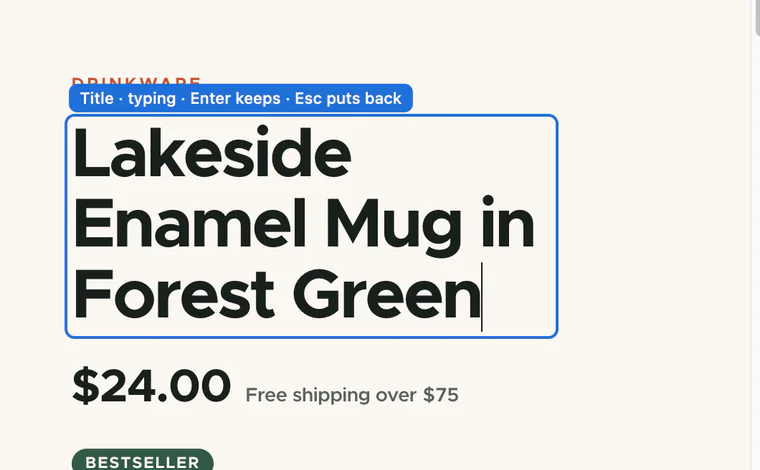
Keep, or put back
Enter, clicking anywhere else on the page, or Keep keeps the words. Esc, on the page or in the window, or Put back puts back exactly what was there. Either way the keyboard comes back to the part’s details in the Inspector.
See it in the layer
The Inspector says “In the layer, as a draft:”, with the words before → after, what they reach, and Open Edits (On a Mac, ⇧E; on Windows and Linux, Shift+E). The page goes on showing the new words.
The Inspector’s Design tab after keeping new words on the Northstar hero heading: “In the layer, as a draft:” with Words, the old heading → the new one, “for this element”, and Open Edits.. Picture to come Picture: to come
A screenshot of the real app, with the demo’s data, of what the title above says.

Retype in a box
The same edit can be typed in a box in the side panel, for the keyboard and screen readers.
Open it
In the Inspector’s Design tab, open Edit ▾ and choose Retype in a box.
Type the new words
The New words box starts with the words as they are. Show it on the page, or Enter, adds the edit; Esc or Cancel closes the box.
Retype in a box for the Northstar hero heading: the New words box holding the heading, Show it on the page and Cancel, and the line saying it is for this element and shown on the page at once.. Picture to come Picture: to come
A screenshot of the real app, with the demo’s data, of what the title above says.
Enter held down, or an input method’s Enter confirming a word, adds nothing more: one press makes one draft.
Where the words go
What you keep is a draft in the design layer. Wanigan keeps it on its own side, and the page goes on showing it, after every reload too. The site does not have the words until you make them real, which saves them through the site’s own core, as you; Verify then checks the site renders them.
An edit of words is for one element. When the site shows the same stored thing in more than one place on the page, the edit says “this item, shown twice on this page”, and the new words show in each place, as saving them will.
What it refuses
| When | What happens |
|---|---|
| The part holds more than words: a link, an image, other elements | E opens Edit ▾, with every way to change it. Type on the page says “Select the words themselves (an element with only text in it) to type on them.” |
| The page itself already lets you type there | “The page itself already lets you type here, so Wanigan leaves it to the page.” |
| A hosted environment is shown | Type on the page is not offered: “This environment is read-only: nothing here can change it.” |
| You left the words empty | “Nothing was left typed, so the words were put back.” |
| The words are the same as before | Nothing is added. |
| The page goes to another address while you type | “The page went to another address while you typed, so nothing was kept.” |
| The chosen part is no longer on the page | “Nothing is chosen on the page any more: pick it again, then retype it.” |
Keys
In depth
While you type
- Only plain words: the element is made editable as plain text. Enter keeps rather than starting a new line, nothing typed makes a line break or a style, and a paste or a drop is its plain text, with spaces for line breaks.
- The page’s own scripts hear none of the keys you type (a carousel’s arrows, a site’s shortcuts), and the live editor’s single keys wait too.
- A link or a button around the words does nothing while you type: a click places the caret.
- Clicking the page’s scrollbar is not clicking away. Moving the keyboard to Wanigan’s window does not end typing either: Keep and Put back in the status line are there for that.
- The browser’s own focus ring is hidden while you type, since the outline already says it, and the element’s own style is put back afterwards as it was written.
How the edit is kept
Before the words become editable, Wanigan keys the edit to the element by what the site says it is: the innermost part around it that the trace names (such as one field of one piece of content), the path from that part to the element, and a hash of all the element’s words as the site rendered them. So the edit names the words the site rendered, not what you typed over them. The edit is for that one element (scope this), at every width.
Keeping puts the element’s own text nodes back holding the new words, the way the layer writes words, so the page shows them without a flicker once the edit is added. Putting back restores the same nodes, in the same order, with the same values, the helper’s part marks around a field’s words included.
On a later load, an edit whose element is gone, or now shows other words, is set aside as orphaned and never put on whatever is there now. An element no part of the site names is kept by where it sits in the page; the edit says so, as Fragile, before you make it. See the design layer.