
Build with an agent
Snap and Record
In short
A snap is a picture of the page that you mark up with boxes, arrows and blurs; a recording is up to two minutes of the page with a log of every click, page and error. Either goes to an agent with your explanation and what made each part, and nothing leaves Wanigan until you send it.
On this page
Snap or Record
| Snap | Record | |
|---|---|---|
| Best for | Something you can see: a gap, a colour, a broken layout. | Something that happens: a menu that will not open, a form that fails, a page that jumps. |
| Start it | On a Mac, ⇧S; on Windows and Linux, Shift+S, or the camera in the toolbar. | On a Mac, ⇧R; on Windows and Linux, Shift+R, or Record in the toolbar. |
| The agent gets | The marked-up picture; the page’s address and width; the parts the area covers and what made them; the console’s errors. | Up to eight key frames as pictures; the step log; the address, width and length. Never the video. |
| Kept | Nothing, until you send it or save it to Notes. | The clip, key frames and log, in Wanigan’s data: the project’s last five. |
Both work in a project’s Live tab with the live view on; neither is in the smaller view beside a session’s terminal, where notes on parts still work.
Take a snap
Press Snap
Press On a Mac, ⇧S; on Windows and Linux, Shift+S, or the camera in the toolbar. Wanigan takes the picture first, as the view shows it, with its own outlines left out, then draws it where the page is.
Choose what
Drag over the part that is wrong. Or press W for the Whole view, or F for the Full page: the whole page, top to bottom, loaded again at the same width in a hidden window. Anything you opened on the page by hand, such as a menu, is not in a full-page picture.
Snap’s first step, “1. Choose what”, over the Northstar product page, with Whole view and Full page above the picture and an area being dragged over the price. Picture to come Picture: to come
A screenshot of the real app, with the demo’s data, of what the title above says.
Mark it up
Draw a Box (B), an Arrow (A), a Highlight (H), a short Label (T: click where it goes, type, press Enter) or a Blur (U) over anything private. On a Mac, ⌘Z; on Windows and Linux, Ctrl+Z takes back the last mark and On a Mac, ⌘⇧Z; on Windows and Linux, Ctrl+Shift+Z puts it back.
Snap’s second step, “2. Mark it up”: a box around a product card’s name and price and an arrow pointing at it, the tools Box, Arrow, Highlight, Label and Blur, and Ask an agent at the right. Current beta · demo 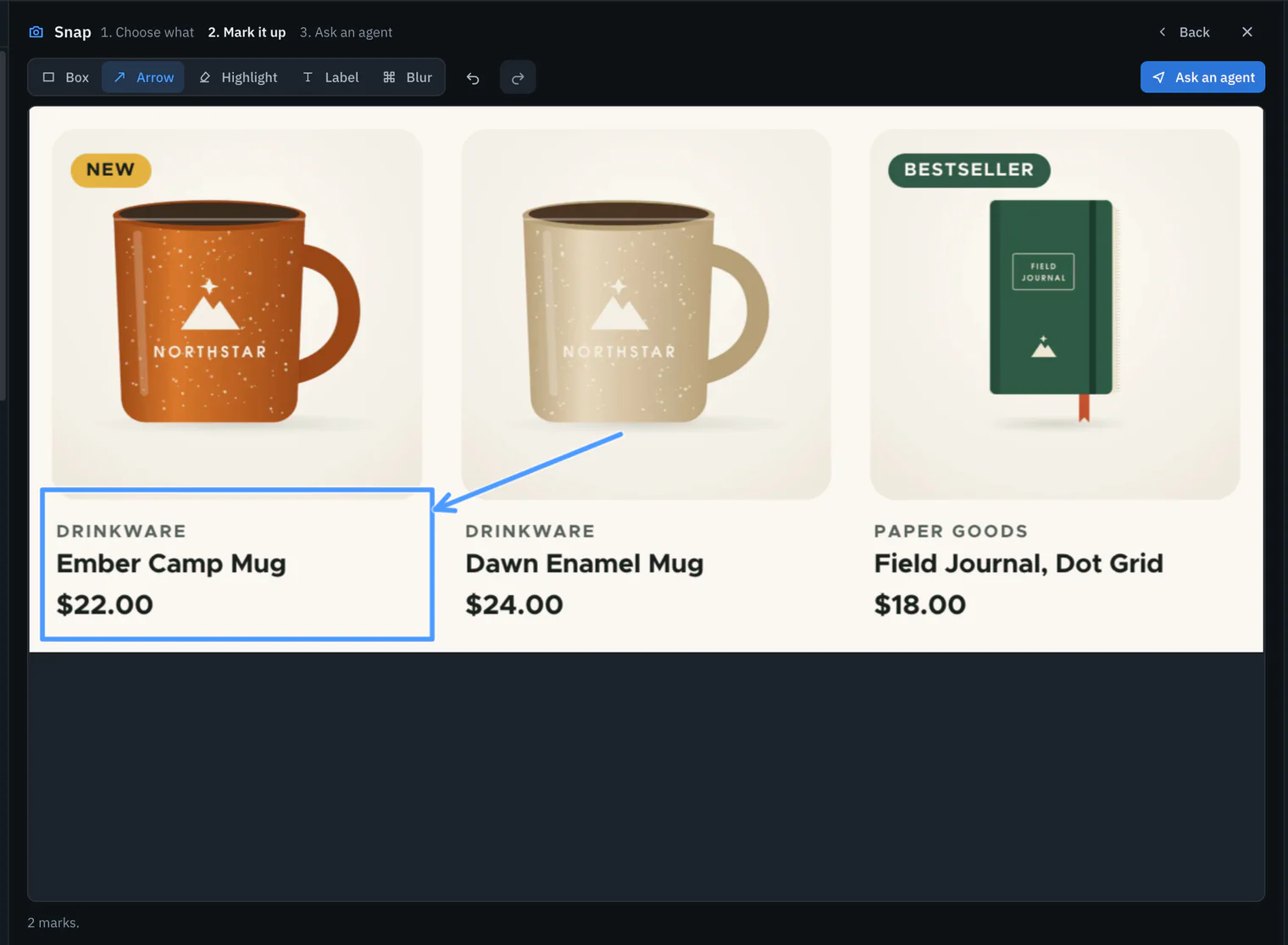
Ask an agent
Press Ask an agent (On a Mac, ⌘↩; on Windows and Linux, Ctrl+Enter). The note composer opens beside the picture, exactly as it will be attached. Write what is wrong in the first box; the second, Sent with it, yours to edit, holds the context Wanigan wrote.
Snap’s third step, “3. Ask an agent”: the marked-up picture on the left, and the composer with the explanation box, the box Sent with it, yours to edit holding the page, the area and what made each part, and Start Claude Code with this and Save to Notes. Current beta · demo 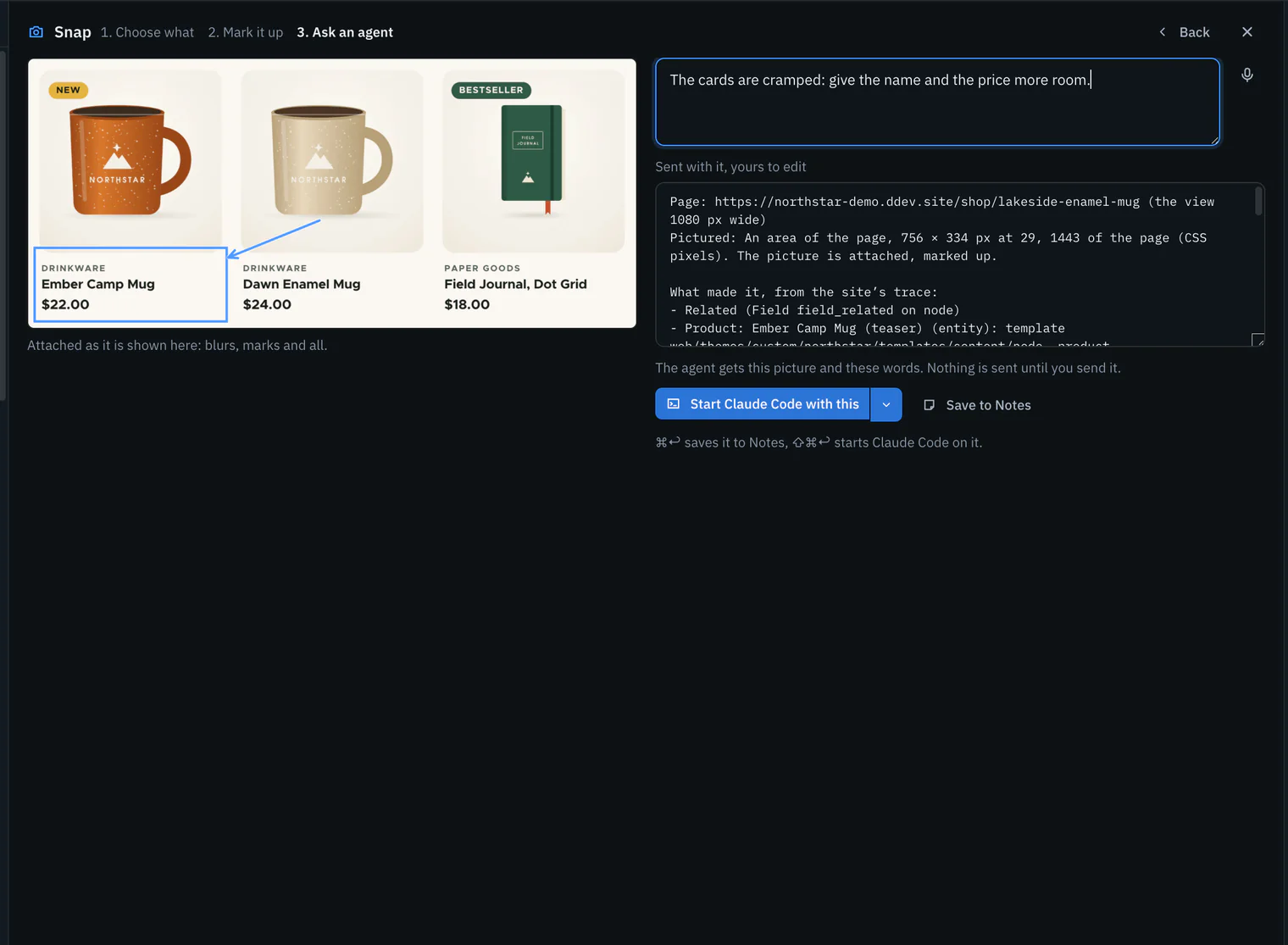
Send it
Send now (On a Mac, ⌘⇧↩; on Windows and Linux, Ctrl+Shift+Enter) queues it to the agent; with none running, Start Claude Code with this starts one with it. Save to Notes (On a Mac, ⌘↩; on Windows and Linux, Ctrl+Enter) keeps it, picture and all, to send later with other notes. Esc, outside the boxes, goes back a step; nothing leaves Wanigan until you send.


Record the page
Start recording
Press On a Mac, ⇧R; on Windows and Linux, Shift+R, or Record in the toolbar. Only the live view is recorded, from its own frames: there is no screen recording, so your operating system asks for no permission.
The live view’s toolbar while recording the Northstar front page at phone width: Record has become Stop with the time, and the status line says Recording. Picture to come Picture: to come
A screenshot of the real app, with the demo’s data, of what the title above says.
Show the problem
Use the page as you normally would: click, type, scroll, go to another page. The toolbar says Stop with the time, and the status line says it is recording. A recording stops itself at two minutes.
Stop
Press Stop, On a Mac, ⇧R; on Windows and Linux, Shift+R, or Esc while you are not typing in a field. Leaving the live view stops it too.
Look it over
The review opens where the page is: the clip, up to eight key frames and the step log. Click a key frame or a step to take the clip to that moment.
A stopped recording’s review over the page: the clip with its controls, two key frames with their times, the Steps log, where it is kept, Show in Finder and Delete. Picture to come Picture: to come
A screenshot of the real app, with the demo’s data, of what the title above says.
Ask an agent
Ask an agent (On a Mac, ⌘↩; on Windows and Linux, Ctrl+Enter) opens the composer with the key frames attached and the step log as words. Explain what is wrong and what you expected, then send it or save it to Notes. The agent gets the pictures and the log, never the video, and the composer says so.
The recording’s composer: its key frames in a row, the explanation box, the step log under Sent with it, yours to edit, and the line saying agents don’t receive video. Current beta · demo 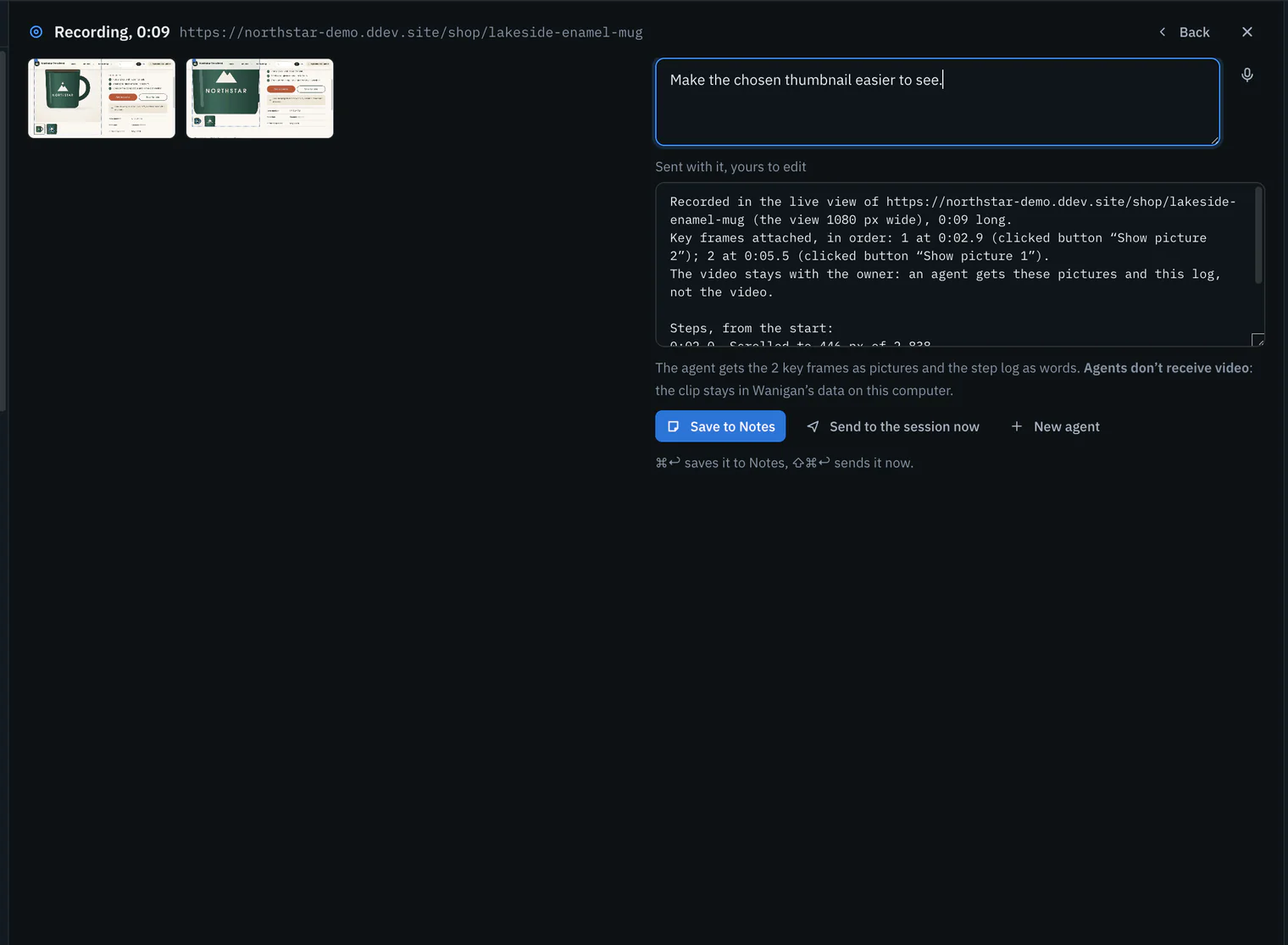

Narrate as you record
Saying it as it happens is often quicker than writing it up afterwards. The toolbar’s Voice tool, after Snap and Record, narrates a recording: press it while recording (it reads Narrate this recording), and each sentence you say goes into the step log at the moment you said it, as “Said: …”. The agent gets those lines with the key frames.
Switch on Narrate recordings in Settings › Voice to narrate every recording from its start to its stop; the microphone is on only while it records. On a Mac, ⌘⇧M; on Windows and Linux, Ctrl+Shift+M starts or stops narration while a recording runs and you are not typing in a box. Speech becomes text on this computer, as everywhere in Wanigan.
Where recordings are kept
Each recording is kept in Wanigan’s own data folder, under live-recordings/, never in the site’s files: the clip as clip.webm, the key frames as frame-1.jpg to frame-8.jpg, and the log as recording.json. A project keeps its last five; starting another takes the oldest away. The review says where it is, with Show in Finder (Show in File Explorer on Windows) and Delete.
The clip is a WebM video, which Wanigan and current web browsers play; not every video player on a Mac does.
Keys
| What it does | Mac | Windows and Linux |
|---|---|---|
| Snap a picture of the page to mark up and send to an agent | ⇧S | Shift+S |
| The whole view | W | W |
| The full page, loaded again at this width | F | F |
| Box | B | B |
| Arrow | A | A |
| Highlight | H | H |
| Label | T | T |
| Blur | U | U |
| Take back the last mark | ⌘Z | Ctrl+Z |
| Put the mark back | ⌘⇧Z | Ctrl+Shift+Z |
| Ask an agent | ⌘↩ | Ctrl+Enter |
| Back a step, or close | Esc | Esc |
| Start or stop recording the page (Escape stops it too) | ⇧R | Shift+R |
| Show the recording in Finder or File Explorer | O | O |
| Delete the recording | ⌘Backspace | Ctrl+Backspace |
| Speak into the box you are typing in: start or stop listening | ⌘⇧M | Ctrl+Shift+M |
In depth
How a snap is made
- The picture is taken before anything covers the view, because a covered view draws nothing; Wanigan’s outlines are hidden for that one frame.
- A dragged area must be at least 12 × 12 pixels: a click, or a sliver, is not an area.
- The full page is pictured down to 8,000 pixels; a longer page says it stops “down to where a picture stops”.
- The parts an area covers are those at least half inside it, in page order, at most twelve (“and 3 more” counts the rest), and the smallest part holding the whole area, said as “All of it inside”. For the full page, its top-level parts.
- With the site helper, each part says what made it from the site’s trace, with the template’s line and the module, plugin or theme it comes from, and whose code that is; without it, from the page’s own marks, such as Drupal’s Twig debug comments.
- Up to ten of the console’s errors are listed, then “and 4 more” for the rest.
- The kept picture is at most about 12 million pixels, as a PNG, or a JPEG when a PNG would be too large to attach (an attachment is at most 20 MB).
How the blur hides things
A blur in Wanigan is not a soft filter that could be reversed. Each block of the area under it becomes one flat colour, the average of its pixels, so what was there cannot be read back. A block is about 16 CSS pixels, or a sixth of the blurred area’s shorter side when that is larger, so a big blur uses big blocks.
The blur is applied in the drawing itself, the one you see while marking up, and that drawing is the picture kept and sent. The picture as first taken is never kept anywhere.
What the step log keeps
| Kept | Never kept |
|---|---|
| Each click: what it was on (a link’s or button’s words, a field’s label), where, and the part of the page under it. | The keys or words typed in a password, one-time code or card field: only that keys were pressed there. |
| Named keys (Enter, Tab, the arrows) and what was typed into a field, with the field’s label. | A field’s value: typing is put together from the keys pressed, never read from the field. |
| Scrolls, once the page settles. | A request’s or a response’s body, headers or cookies. |
| Each page, by its path and status. | An address’s query, fragment or credentials: only its path, and its host when it is not the site’s own. |
| Console errors, and what you said while narrating. | Anything outside the live view: the frames come from the view alone. |
| Requests that failed, or took a second or more: method, path, status and time. | The video, in a message to an agent. |
A field counts as secret when its type is password, its autocomplete says a password, one-time code or card number, or its name looks like a password, PIN or security code. A password field switched to show its words stays secret for the rest of the page. In the log, such lines read like this, and requests like the last two (made-up values):
Typed in a password field (password field “Password”); the keys are not kept
Pressed a key in a password field (password field “Password”); the key is not kept
Request failed: POST /contact/feedback answered 500 in 312 ms
Slow request: GET /shop answered 200 in 1,840 ms
A log keeps at most 400 steps and says so when it stops. A run of typing keeps up to 200 characters, a console error 400 and a spoken sentence 2,000. A request the page itself called off is not a failure.
How key frames are chosen
A key frame is a still from the recording, sent as a picture. Wanigan picks the moments that matter: each click (the frame you clicked on, the click ringed), each new page (a moment after it arrived) and each error (as it happened). Two moments on one frame count once, named by the more important.
At most eight are sent. With more moments than that, errors come first, then pages, then clicks, each kind spread evenly over the recording, and the chosen frames are put back in time order. A recording with no such moment sends its first frame and its last.
The clip
- About five frames a second, scaled to the view’s width and at most 1,280 pixels wide. A page that sits still sends no frames, and the clip holds the last one until it moves.
- Encoded by Chromium’s own VP8 encoder in a hidden window and written as WebM, at about 800 kbit/s: at most about 12 MB for two minutes, under an attachment’s 20 MB.
- If this copy of Chromium has no VP8 or VP9 encoder, or encoding takes longer than five minutes, there is no clip; the key frames and the log are still kept, and the review says why.
- Starting a recording while the last one is still being saved is refused: “The last recording is still being saved.”
- The same limits as attachments hold: a file at most 20 MB, ten files and 50 MB in all.