
Build with an agent
Prompts: what the app sends, and asks to adapt
In short
Wanigan writes the part of a message that says where and what: the page, the parts, the files behind them and the pictures. You write the part only you know: what is wrong, what right looks like, and how you will check.
On this page
Who writes what
Every message from the live view has two halves. The first numbered line is yours, from the box that asks “What should change here?” or “Explain what is wrong”. Everything after it is Wanigan’s. For a snap or a recording it sits in the second box, Sent with it, yours to edit, so you can read it and cut anything before it goes.
So your words need not say which page, which part or which file: the message already does. Spend them on what the context cannot say.
Write and send an ask
Point at it
Choose the part, or take a snap or a recording.
Say what is wrong
In the first box, in a sentence or two. Speak it if that is quicker, with the mic beside the box.
The note composer for a snap of the Northstar product page: the ask typed in the first box, and the context Wanigan wrote in the second. Current beta · demo 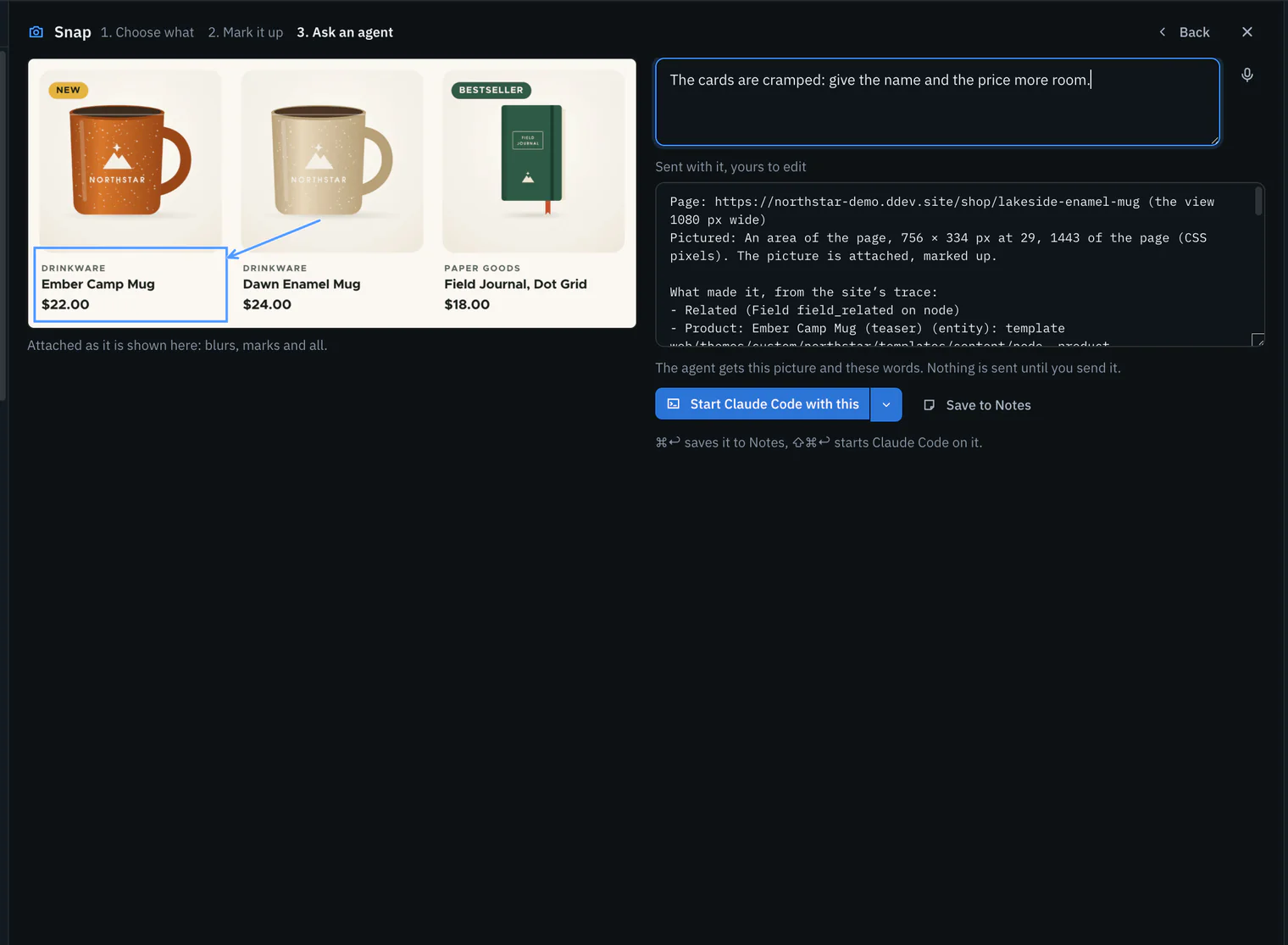
Read what goes with it
Check the context: the address, the parts, the errors. Cut what is beside the point; it is yours to edit.
Send it
On a Mac, ⌘⇧↩; on Windows and Linux, Ctrl+Shift+Enter sends it now, or starts an agent with it when none is running.

Writing a good ask
- Say what is wrong, as you see it. “The price and the badge touch” tells the agent more than “fix the spacing”. It has the picture: say what to look at in it.
- Say what right looks like. Give a target the agent can check: “the same gap as between the title and the price”, “two lines at most on a phone”. A box or an arrow on a snap can point at it.
- Say how you will check. “I will look at phone and desktop width in the live view.” The agent can look too, with the live view’s own tools.
- One problem per note. Each note is numbered with its own pictures, so several notes in one message stay apart; one note with three problems leaves the agent to untangle them.
- Fix the context only when it misleads. If the parts listed are not the ones you mean, cut them, or point again at the right part.
Asks to adapt
Each of these is written as you would type it in the first box. What the agent receives with it is under each.
Make this heading match the snap
Make the product names on /shop look like this heading, the one boxed: the same weight and letter spacing. Keep their size. I will check at phone and desktop width.The agent receives The marked-up snap of the front page’s hero heading as a picture, and the context: the page’s address and width, the area, the parts it covers (such as the Hero component) with what made them, and the console’s errors.
Based on Snap › Ask an agent: CODE components/live/Snap.tsx, shared/live-snap.ts snapContext
This card’s spacing is off on phones: here is a recording
On a phone, the product cards on the shop have no space between them. I expected the same gap as at desktop width. The recording scrolls to them at 390 px.The agent receives The key frames as pictures (at each click, page and error, at most eight) and the step log as words, with the view’s width and your narration if you narrated. Never the video.
Based on Record › Ask an agent: CODE components/live/Record.tsx, shared/live-record.ts recordContext, chooseKeyFrames
Fix the console error on this page
Fix this error: the opening hours box stays empty because of it. When it is fixed, the hours show and the Problems tab is empty after a reload.The agent receives From Problems › Add to notes, a note that begins “Fix what this page reports:” and lists each error with where it came from. From a snap, the console’s errors under “Console errors on this page:”.
Based on CODE components/live/Problems.tsx keep(); shared/live-snap.ts snapContext
This form fails when I send it
The contact form fails when I send it: the page shows an error instead of the thank-you message. Find out why, fix it, and tell me what the request answered before and after.The agent receives With a recording, the step log: each field typed into, with its label and words (never a password, one-time code or card field), the click on the button, and the failed request’s method, path, status and time. Never its body, headers or cookies.
Based on CODE shared/live-record.ts cleanStep, stepText; renderer/src/live-page-record.ts
Make this style real in the theme
Use the theme’s own type scale for this rather than a new size, if one is close.The agent receives The brief: the element as the site stores it, how far the edit reaches, each value before and after, why Wanigan did not save it itself, and a picture while the view shows that page.
Based on Edits › Make it real on a style: CODE components/live/Tray.tsx noteDraft; renderer/src/lib/live-layer.ts layerNoteLines
Check it yourself before you say it is done
When you have changed it, look at the product page at 390 and 1440 px with Wanigan’s live view tools, and tell me what you saw.The agent receives Nothing more is needed: every session already has live_look and the other tools. With a card and before and after screenshots on, live_diff says what changed since its last turn. Each look is kept on the card’s Looks tab.
Based on README › Agents see it too; CODE cli/mcp.ts TOOLS
In depth
Notes on parts
Two notes, one on the product page’s title and one on a product card in the shop, sent together. The site has no helper here, so each part is named from Drupal’s Twig debug comments.
Two notes on parts, across two pages
2 notes from the live view of 2 pages:

1. Make the product name match the hero heading on the front page: the same weight and letter spacing.
   Page: https://northstar-demo.ddev.site/shop/lakeside-enamel-mug
   Pointed at: `div > article > div:nth-of-type(1) > div:nth-of-type(2) > h1` (“Lakeside Enamel Mug”)
   Made by (innermost first): Product (Node · full view): template themes/custom/northstar/templates/content/node--product.html.twig, theme hook node

2. On a phone, product names here wrap onto three lines. Keep them to two.
   Page: https://northstar-demo.ddev.site/shop
   Pointed at: `article > div > a > div:nth-of-type(2) > h3` (“Lakeside Enamel Mug”)
   Made by (innermost first): Product card (Component · northstar): component northstar:product-card; Product (Node · teaser view): template themes/custom/northstar/templates/content/node--product--teaser.html.twig, theme hook node; Products (View): template themes/custom/northstar/templates/views/views-view.html.twig, theme hook views_view

A picture of each part, as it looked, is attached in the same order.
The agent receives A picture of each part, as live-note-1.png and live-note-2.png, in the same order. When Wanigan has read the site’s components, a component’s line also names its folder on your computer.
Words from notesText() in src/renderer/src/components/live/note-store.ts
A snap
The second box of the composer is filled with this, for an area dragged over the price and badges of the Northstar product page at 1,280 pixels, on a site without the helper:
The context a snap fills in
Page: https://northstar-demo.ddev.site/shop/lakeside-enamel-mug (the view 1280 px wide)
Pictured: An area of the page, 540 × 100 px at 664, 228 of the page (CSS pixels). The picture is attached, marked up.

What made it, from the page’s own marks:
- Price (Field field_price on node (product)): template themes/custom/northstar/templates/field/field--field-price.html.twig
- Price (Component · northstar): component northstar:price
- Badges (Field field_badges on node (product)): template themes/custom/northstar/templates/field/field--field-badges.html.twig
- Badge (Component · northstar): component northstar:badge
All of it inside: Product (Node · full view): template themes/custom/northstar/templates/content/node--product.html.twig

The page logged no console errors.
The agent receives Shown in Sent with it, yours to edit, to change before you send.
Words from snapContext() in src/shared/live-snap.ts
With an explanation in the first box, the agent receives:
A snap, as the agent receives it
A note from the live view of https://northstar-demo.ddev.site/shop/lakeside-enamel-mug:

1. The price and the badge under it are too close. Give them the same gap as the one between the title and the price.

   Page: https://northstar-demo.ddev.site/shop/lakeside-enamel-mug (the view 1280 px wide)
   Pictured: An area of the page, 540 × 100 px at 664, 228 of the page (CSS pixels). The picture is attached, marked up.

   What made it, from the page’s own marks:
   - Price (Field field_price on node (product)): template themes/custom/northstar/templates/field/field--field-price.html.twig
   - Price (Component · northstar): component northstar:price
   - Badges (Field field_badges on node (product)): template themes/custom/northstar/templates/field/field--field-badges.html.twig
   - Badge (Component · northstar): component northstar:badge
   All of it inside: Product (Node · full view): template themes/custom/northstar/templates/content/node--product.html.twig

   The page logged no console errors.

Attached, in this order: note 1: the marked-up picture.
The agent receives The marked-up picture as live-snap-1.png, blurs already in its pixels.
Words from notesText() in src/renderer/src/components/live/note-store.ts, with snapContext() in src/shared/live-snap.ts
A recording
Ten seconds of the Northstar front page at phone width: a scroll, a click on the hero’s button, the shop, another scroll and one narrated sentence. The indented lines are what the second box held.
A recording, as the agent receives it
A note from the live view of https://northstar-demo.ddev.site/:

1. On a phone, the product cards on the shop have no space between them. I expected the same gap as at desktop width.

   Recorded in the live view of https://northstar-demo.ddev.site/ (the view 390 px wide), 0:10 long.
   Key frames attached, in order: 1 at 0:03.8 (clicked link “Shop the collection”); 2 at 0:05.2 (went to /shop).
   The video stays with the owner: an agent gets these pictures and this log, not the video.

   Steps, from the start:
   0:01.4  Scrolled to 520 px of 4,180
   0:03.8  Clicked link “Shop the collection” (in component northstar:button) at 195, 598
   0:04.3  Went to /shop (200)
   0:07.2  Scrolled to 880 px of 5,240
   0:08.0  Said: “Here: the cards touch, with no gap between them.”

Attached, in this order: note 1: 2 key frames from the recording.
A recording’s video stays with the owner: its key frames and step log are what you get.
The agent receives Two key frames as JPEG pictures, live-recording-1-frame-1.jpg and live-recording-1-frame-2.jpg, the click ringed on the first. Never the video.
Words from notesText() in src/renderer/src/components/live/note-store.ts, with recordContext() and chooseKeyFrames() in src/shared/live-record.ts
A style from the design layer
A smaller font size tried on every product card’s heading in the shop, then Make it real, sent with nothing typed. The shop shows nine products a page.
A style, as a brief
A note from the live view of https://northstar-demo.ddev.site/shop:

1. Change this style.
   Made by (innermost first): Product card (Component · northstar): component northstar:product-card; Product (Node · teaser view): template themes/custom/northstar/templates/content/node--product--teaser.html.twig, theme hook node; Products (View): template themes/custom/northstar/templates/views/views-view.html.twig, theme hook views_view; Content region (Region): template themes/custom/northstar/templates/layout/region.html.twig, theme hook region
   An edit in Wanigan’s design layer, shown on the page but not in the site yet: Heading in Product card (component), for every Product card component (9 elements on this page).
   Its element: Heading in Product card (component): component northstar:product-card, number 1 of its name there, at `h3:nth-of-type(1)` inside it.
   Why Wanigan did not make it real itself: A style goes into the theme’s CSS: in phase 1 an agent makes it from a brief, on your click.
   Style in the layer (not saved): font-size 16.32px → 15px
   Make it in the site’s own styles, the way this theme already styles things (its classes or CSS), not as an inline style.

A picture of each part, as it looked, is attached in the same order.
The agent receives A picture of the card as the view shows it, because the view is on the page the edit was made on.
Words from notesText() in src/renderer/src/components/live/note-store.ts, with layerNoteLines() and elementWords() in src/renderer/src/lib/live-layer.ts
What the page reports
The Northstar demo logs no errors, so this one is from a made-up site, acme.example.test: Add to notes in the Problems tab, then sent.
Fix what this page reports
A note from the live view of https://acme.example.test/visit:

1. Fix what this page reports:
   - Error (console): Uncaught ReferenceError: hoursToday is not defined (/themes/custom/acme/js/hours.js:12)
The agent receives Words only: this note has no picture.
Words from keep() in src/renderer/src/components/live/Problems.tsx, then notesText() in src/renderer/src/components/live/note-store.ts